- Overview
- Terms
- What you will have at each checkpoint
- Chapter 0 — Project bootstrap
- Chapter 1 — Source model and publish to the catalog
- Chapter 2 — Generate the Data Vault
- Chapter 3 — Resource definition group
- Chapter 4 — First load (catalog out)
- Chapter 5 — After the first load (same group)
- Troubleshooting
- Next steps
This is the build-from-scratch guide for an enterprise data warehouse (EDW). You create a source model, publish contracts to the Data Catalog, generate a Data Vault, put it on a resource definition group, and load with Update resource definition group. After that you grow the same group with Business Vault and dimensional models.
Architecture pictures (catalog in/out, resource definition group spine, four controls): Architecture.
To run a finished warehouse instead of building one, use Getting started — retail example or Getting started — AdventureWorks. Advanced fixtures: integration test fixtures.
Estimated time for a small source system (a handful of tables): a few hours in Hop GUI once connections exist.
Overview
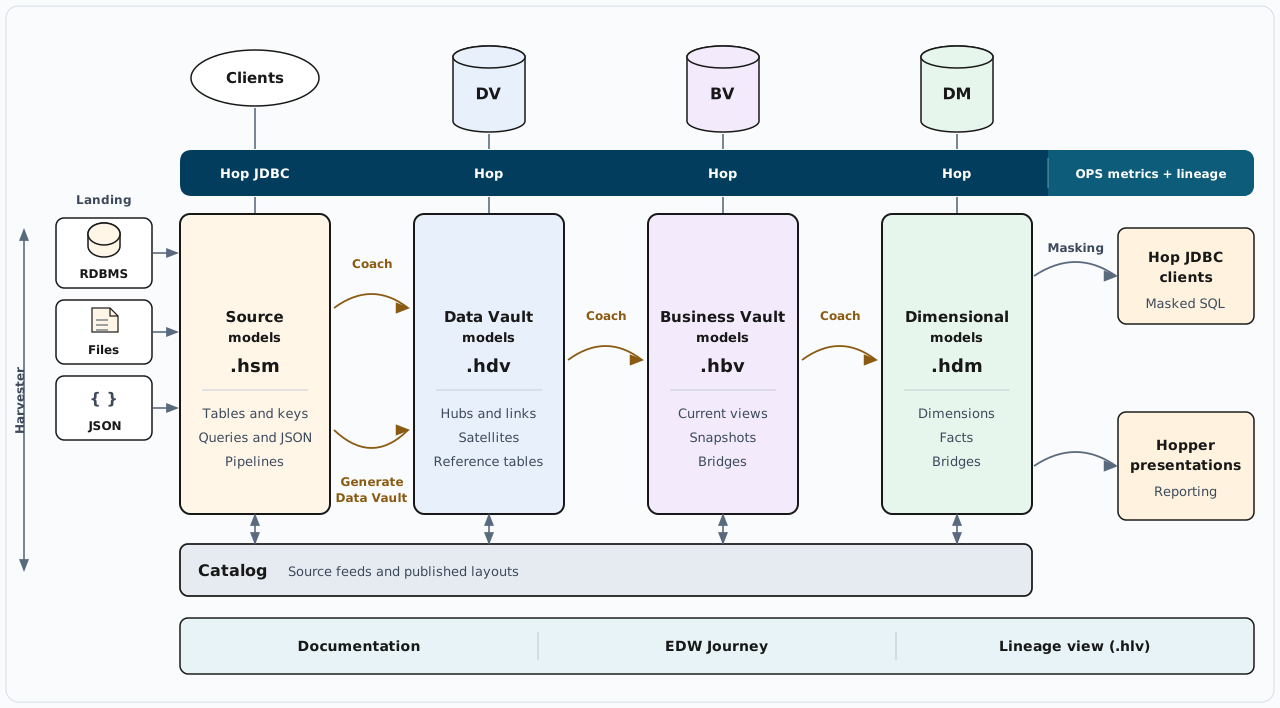
The four model files run left to right.
-
Landing databases, files, and JSON are imported into a source model (
.hsm). The harvester watches live schemas and the catalog, and can generate a source model from what it finds. -
Clients query the source model through Hop JDBC. Hop loads the Data Vault, Business Vault, and dimensional databases from
.hdv,.hbv, and.hdm. OPS metrics and lineage are recorded on that same runtime. -
The coach is the guide from one model file to the next. Generate Data Vault builds the raw vault from the source model. The Masking arrow is Hop JDBC clients reading the dimensional model with masked columns. Hopper presentations report from that same model.
-
Every model publishes to the catalog and reads from it. Documentation, the EDW Journey, and the lineage view (
.hlv) sit on that catalog.
Names for the four model files are in Terms. The architecture page splits this picture into the catalog, the resource definition group, and the load wave.
Terms
The chapters below use these short names. Each row is a model file you open in Hop GUI.
| Acronym | File extension | Description |
|---|---|---|
|
Source model. Tables, primary and foreign keys, and relationships from a source system, plus queries and other feeds you publish to the Data Catalog. Generating a Data Vault starts from this file. |
|
|
Raw Data Vault. Data Vault 2.0 hubs, links, satellites, and reference tables. A load appends new keys and new versions of descriptive data. |
|
|
Business Vault. Business rules calculated from the raw vault and stored as their own tables, such as a current view of a hub, a snapshot of related satellites, or a bridge. |
|
|
Dimensional model. Dimensions and facts for reporting, usually loaded from the Business Vault, the raw vault, or both. |
What you will have at each checkpoint
| After chapter | You can stop here with |
|---|---|
0 |
Hop project, connections, FILE catalog, shared model configurations |
1 |
|
2 |
A |
3 |
A resource definition group listing that |
4 |
Vault tables loaded; catalog has published DV layouts |
5 |
Optional |
Chapter 0 — Project bootstrap
-
Create or open a Hop project (folder with
project-config.json). -
Add database connections:
-
A source connection (landing / CRM).
-
A Vault connection (where DV / BV / DM tables will live).
-
Optional OPS if you want harvest history, quality history, or load-run metrics.
-
-
Create an empty source model or Data Vault model file (Explorer → New) so the first-time prompt can run — or skip ahead to the menu in the next step.
-
Accept Configure EDW setup, or open Tools → Configure EDW setup… if you dismissed it.
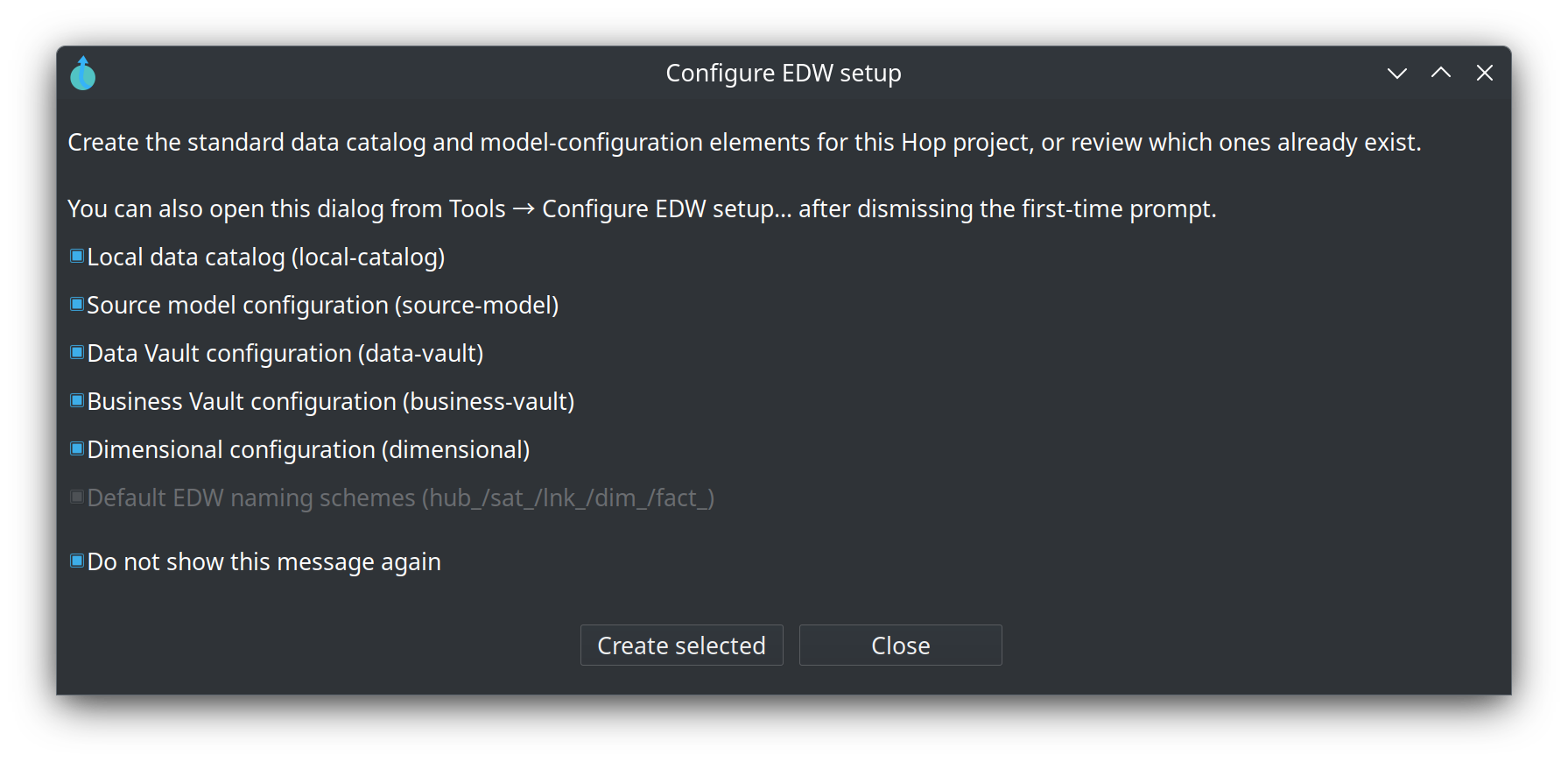
That dialog creates, when missing:
-
Data catalog connection
local-catalog(FILE catalog; default storage${PROJECT_HOME}/catalog-data— retail uses gitignoredwork/edw-catalog/instead) -
Shared configurations
source-model,data-vault,business-vault,dimensional
It does not create a resource definition group. You will do that in chapter 3.
On each model, Edit model and point Configuration at the shared object. Set the Data Vault configuration’s target database to your Vault connection. Set the source model’s catalog connection to local-catalog.
Optional now, useful before publish: a project Data type mapping profile for weak source types. See Data type mappings.
Reference: Configure EDW setup, Data Catalog.
Chapter 1 — Source model and publish to the catalog
Contracts go into the catalog before you generate hubs.
-
New file → source model (
.hsm). Save it under the project (for examplemodels/crm.hsm). -
Edit model — catalog connection
local-catalog, configurationsource-model. -
Toolbar Import schema: pick the source connection, select tables, import columns and primary keys. Foreign keys become relationship edges when the database has them; otherwise Shift+drag (or middle-button drag) between cards.
-
Optional: source queries (joins), Source JSON, or pipeline cards. Skip these on a first pass if every feed is one table.
-
Toolbar Push to catalog — publish selected tables (and any queries / JSON / pipelines). Existing feeds with the same name are overwritten.
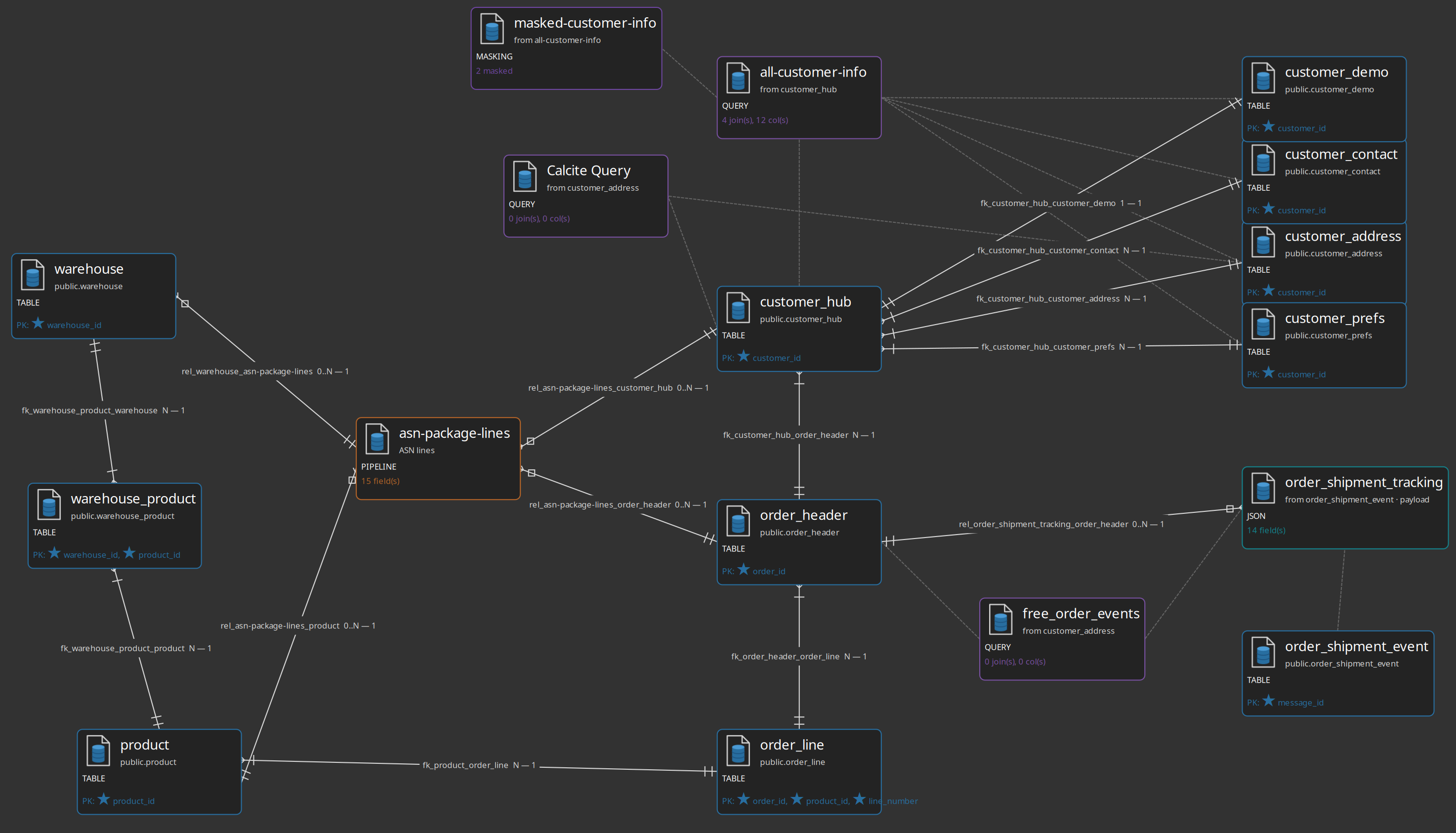
Checkpoint: Data Catalog perspective → hop/{your-project-folder}/sources. Hubs will bind to these names, not to JDBC URLs.
Per-object Publish to catalog still works for a single query or JSON card. Toolbar Push to catalog is the usual bulk path.
Alternative: catalog import without an .hsm
If every feed is one physical table and you do not need joins, JSON, or pipeline contracts yet, you can Import tables from the Data Catalog perspective (the video / coach-panel path). You can add a source model later. For a first warehouse, prefer the .hsm so Generate Data Vault… has PK/FK to classify.
Reference: Source modeler, Data Vault sources.
Chapter 2 — Generate the Data Vault
-
On the
.hsmtoolbar, Generate Data Vault… (or on an open.hdv, Generate from source model…). -
Review the proposed hubs, links, satellites, and reference tables. Uncheck rows you do not want. Turn on Publish unpublished tables to the catalog if some cards were never pushed.
-
Apply into a new
.hdv(or the open one). Save the file (for examplemodels/sales.hdv). -
Edit model — configuration
data-vault, target database = Vault. -
Check model. Fix missing keys or mappings. Refine names and business keys before you load.
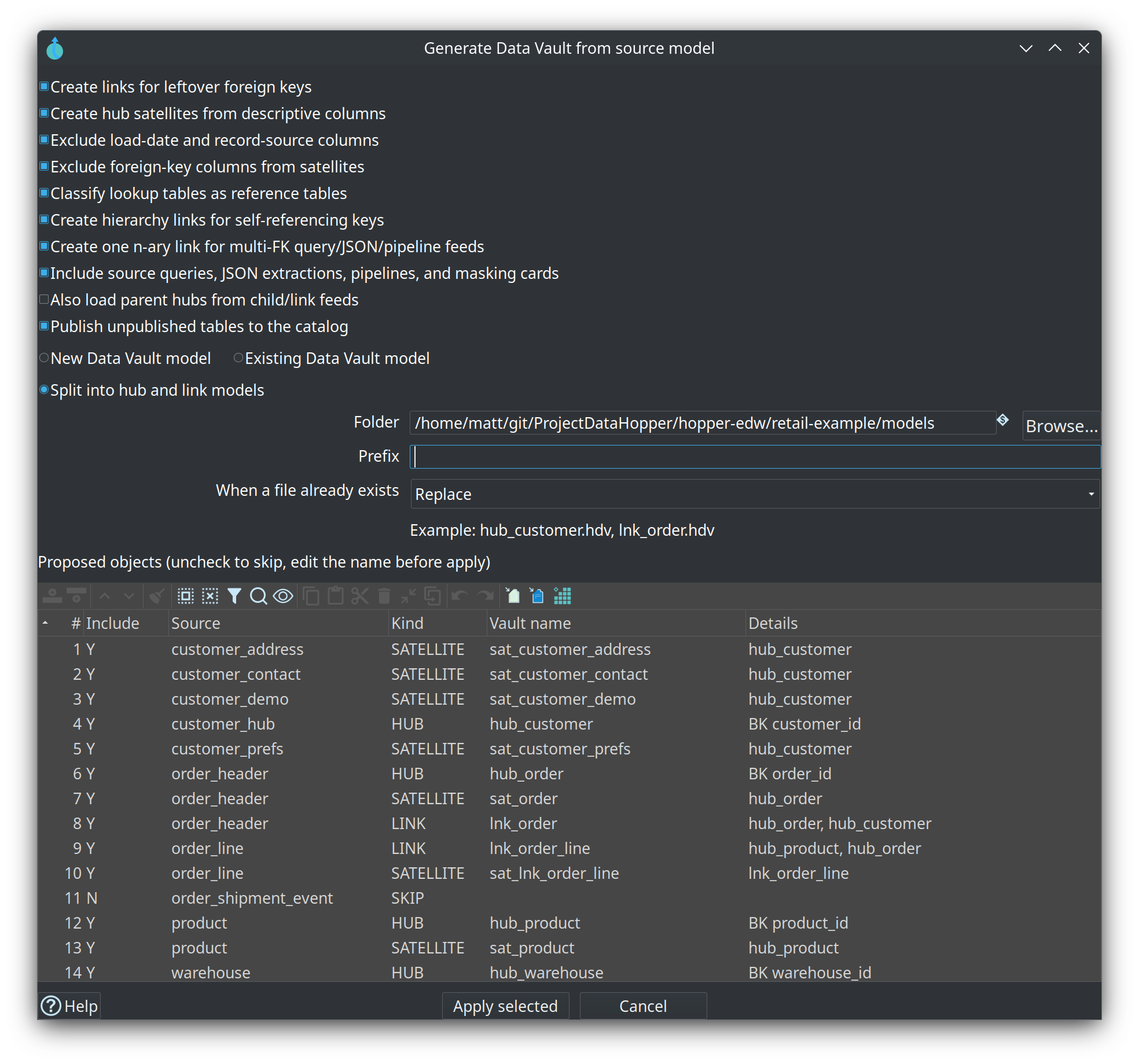
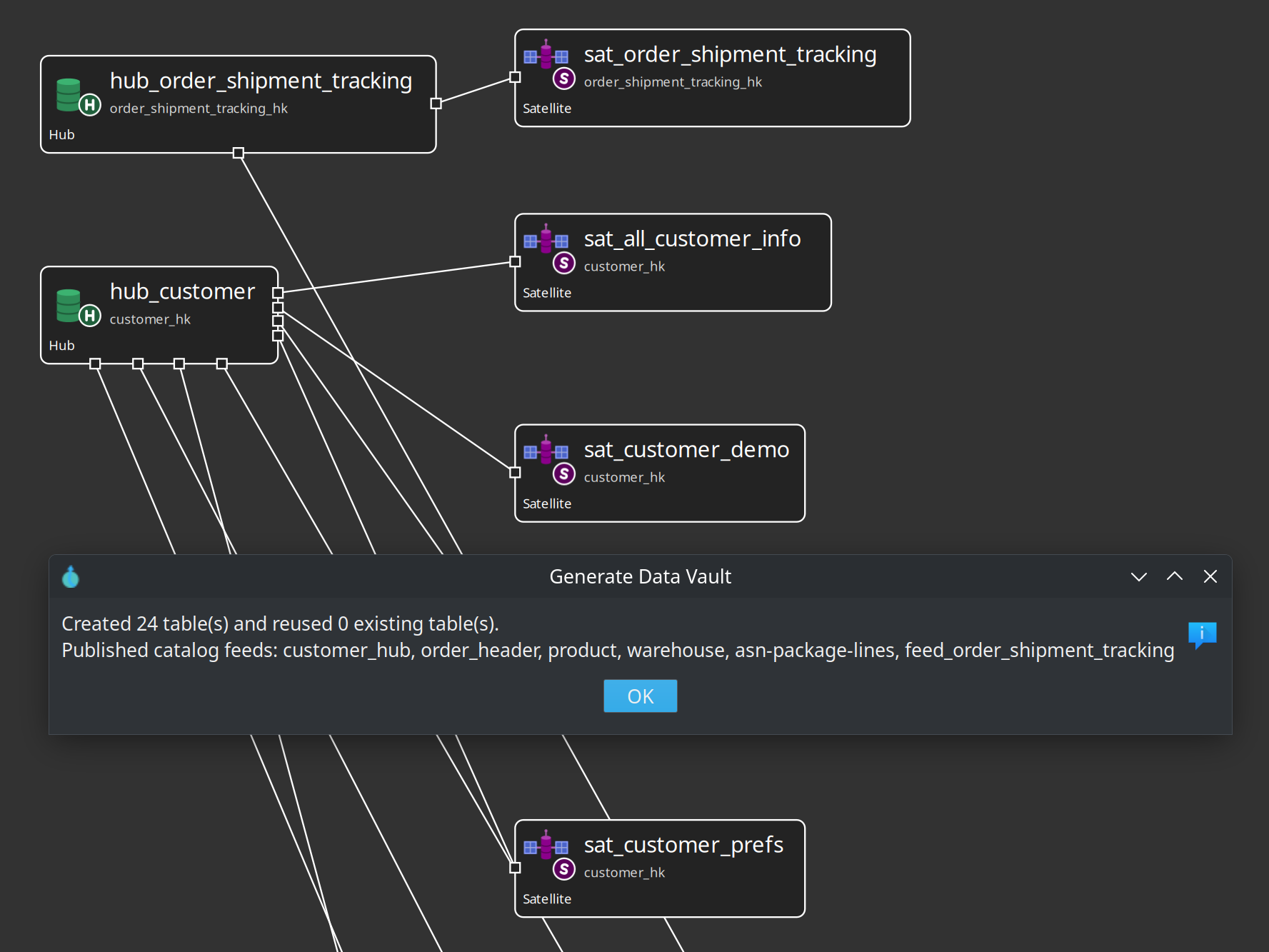
Generation does not create load pipelines or tables. That is chapter 4.
Same destination, more manual: empty .hdv, add catalog sources in the coach panel, drag a source onto the canvas to create a hub or satellite. Use this when you are mapping a few tables by hand. The recommended first path is generate-from-HSM.
Checkpoint: .hdv exists, Check model is clean, no vault tables required yet.
Reference: Generate a Data Vault from a source model, Data Vault plugin, Hubs / Links / Satellites.
Chapter 3 — Resource definition group
The group is the list of warehouse models the rest of the product will harvest, validate, tag, and load.
-
Metadata → EDW → Resource definition group → New.
-
Name (for example
sales-edw). Default catalog connection =local-catalog. -
Data Vault models tab → Add models → your
.hdv. -
Leave Business Vault and dimensional tabs empty.
-
Save.
-
Optional: Tag catalog version as
v1.0.0so later schema gates have a baseline.
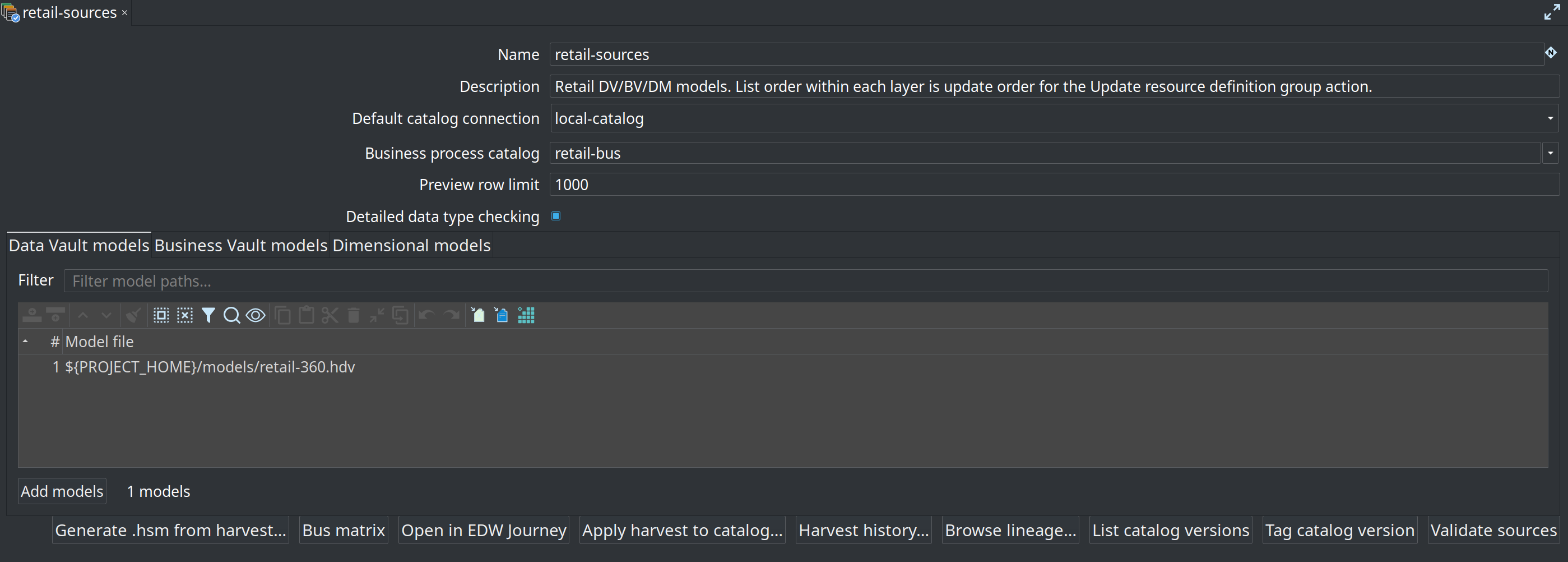
Checkpoint: harvest, Validate sources, and Update resource definition group now have a scope.
Open the EDW Journey sidebar (after Data catalog) and select this group. The tree is the warehouse map: sources, controls, DV (then empty BV/DM), workflows, reports. Details buttons open the catalog, models, and group editor; Documentation buttons open the matching HTML guide. See EDW Journey perspective.
Do not wait for BV/DM to create the group. Add those files to this same group in chapter 5.
Reference: Resource definition group.
Chapter 4 — First load (catalog out)
-
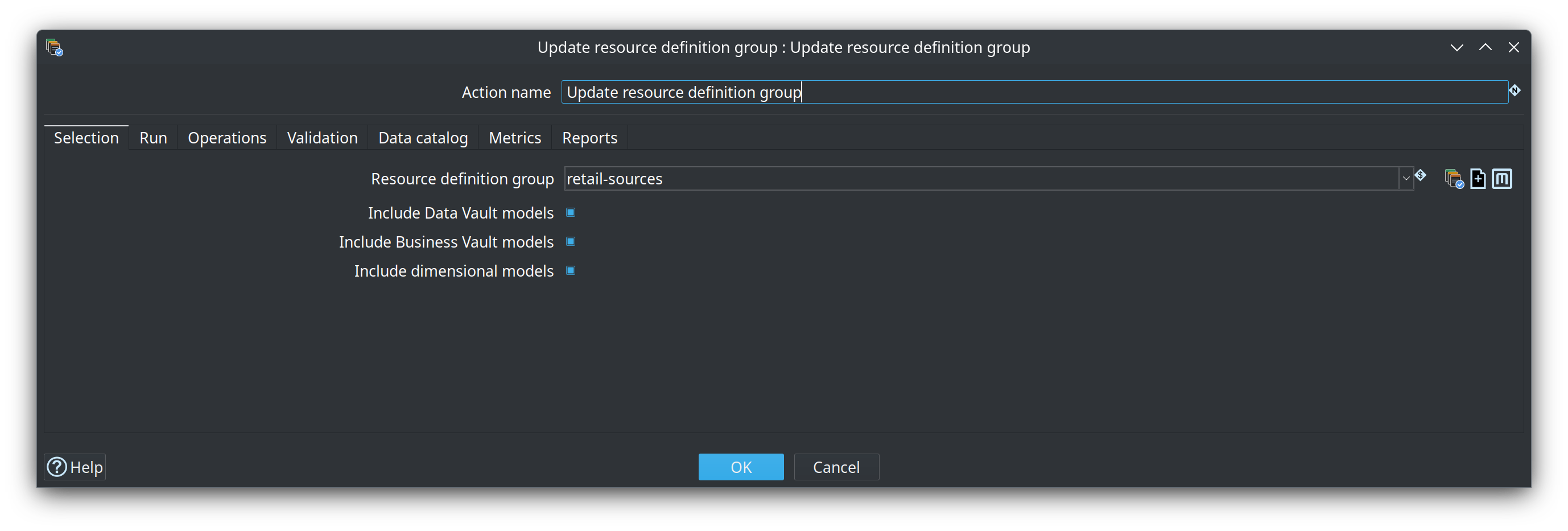
New workflow. Add Update resource definition group (category General).
-
Selection: your group; include Data Vault models (BV/DM off until those files exist).
-
Operations: enable Update target database structure so CREATE TABLE runs on the empty Vault.
-
Data catalog: enable Publish target tables to catalog.
-
Validation: log model checks; abort on errors if you want a hard stop.
-
Run the workflow (GUI or
hop-run/./scripts/run-hop.shif you use the repo Docker runners).
Checkpoint:
-
Vault database has hub / link / satellite tables.
-
Data Catalog has
hop/{project}/models/{model-name}/layouts (and lineage siblings when publish is on).
That catalog write-back is expected. The group update publishes targets; it does not replace your source feeds. Picture: Architecture — D2.
Production wave (add as soon as the first load works)
Put these actions before Update resource definition group:
Harvest source metadata
  → Validate resource definitions   (schema gate)
  → Measure data quality + Evaluate quality gate
  → Update resource definition group
  → optional Measure target quality (ALERT_ONLY)
On a first load, enable Target tables are created automatically on the schema-gate action so expected CREATE is not treated as a defect. On later waves, turn that off.
Harvest is not chapter 1. It needs this group and models that already reference catalog sources. Metadata harvesting and Architecture — D5 explain how harvest, the schema gate, Check model, and data quality differ.
Single-model Data Vault Update still exists. Use it for one file. Prefer Update resource definition group as soon as you have a group — including a group with only one .hdv.
Reference: Update resource definition group, Operations, Schema gate, Data quality.
Chapter 5 — After the first load (same group)
Grow the warehouse; do not start a second group.
Business Vault
-
New
.hbv. Point it at the.hdv(and/or place DV table aliases on the canvas). -
Edit model — configuration
business-vault, target database (often the same Vault). -
Add SCD2 / PIT / bridge / SQL business tables. Check model.
-
Resource definition group → Business Vault models tab → Add models.
-
Run Update resource definition group again with Business Vault included.
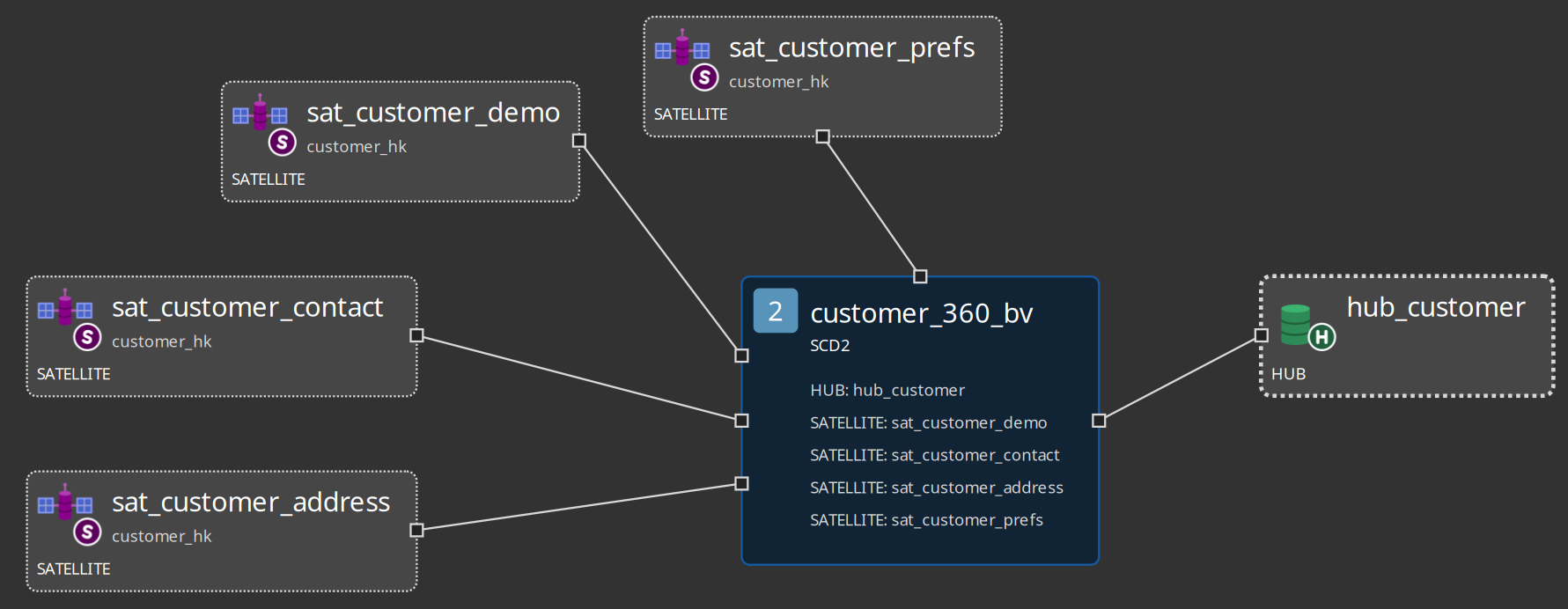
Reference: Business Vault overview, SCD2, Business Vault Update.
Dimensional marts
-
New
.hdm, or from the.hdvcanvas Publish draft dimensional model (workflow action Dimensional Publish). Review the draft. -
Edit model — configuration
dimensional. You can sketch dimensions and facts with source type None (logical) and field Markdown notes before BV/DV sources exist. Configure a load source (SQL, pipeline, record definition, or date generator) before Dimensional Update. -
Check model.
-
Resource definition group → Dimensional models tab → Add models.
-
Update the group again with dimensional included.
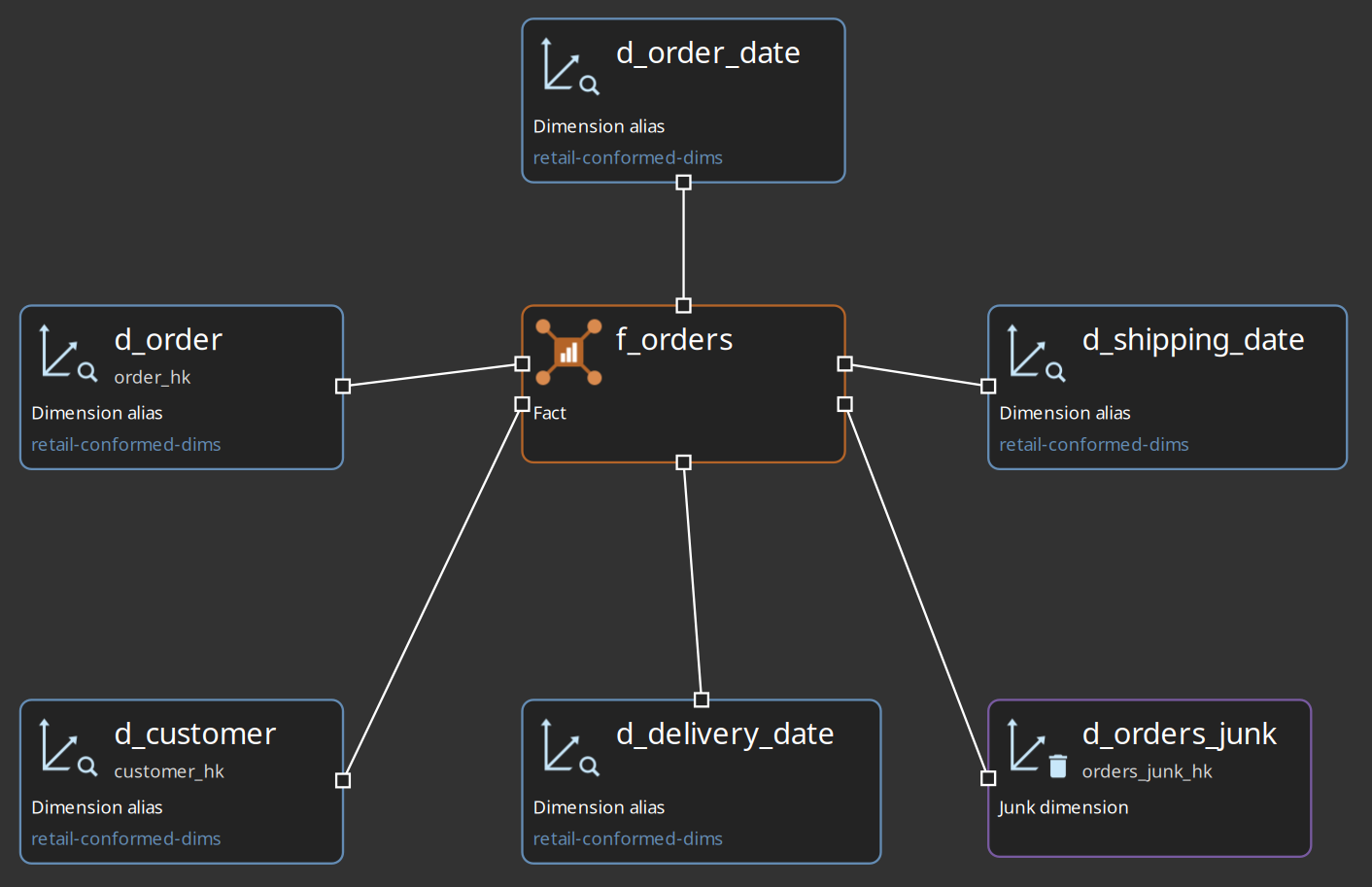
Reference: Dimensional modeler, Dimensional Update and Publish.
The action always loads all DV, then all BV, then all DM listed on the group. List order inside each tab is the order within that layer.
Day-2 (not required to have an EDW)
| When you need | Go here |
|---|---|
Live schema drift history; apply FKs; generate an |
Metadata harvesting (day-2 discovery — not a greenfield first step) |
CI schema gate, version tags, length remediation |
|
Row-level rules on sources or published targets |
|
Load overview reports, partial loads, Docker runners |
|
Field lineage, reverse browser, explainable DDL |
|
Hop Lineage View / Marquez |
|
Many subject-area files, shared core hubs |
Troubleshooting
| Symptom | What to check |
|---|---|
Configure EDW never appears |
Tools → Configure EDW setup…. Uncheck “Do not show this message again” if you want the automatic prompt back. |
Push to catalog does nothing / wrong place |
Source model Edit model → catalog connection. Namespace is |
Generate Data Vault skipped a table |
Isolated tables with no relationship are skipped. Draw PK/FK edges, or map JSON/pipeline children. |
Update RDG has nothing to load |
The group’s DV/BV/DM tabs must list the files. The action’s include checkboxes must match. |
Schema gate fails on missing target tables (first load) |
Enable Target tables are created automatically on that first run. |
Catalog “lost” my source feeds after a load |
It did not — look under |
Two groups and a confusing load order |
Use one group per warehouse wave. Split only for independent team loads. |