Data Hopper EDW helps you design and load a Data Vault 2.0 data warehouse using Apache Hop — as one layer of a full EDW (catalog, source models, Business Vault, dimensional). Instead of writing many similar pipelines by hand, you create a visual model of your Hubs, Links, and Satellites. Hop then generates the pipelines needed to load data into those structures.
What the plugin is for
Data Vault 2.0 is a modeling technique for building scalable, auditable enterprise data warehouses. It uses three main building blocks:
-
Hubs – Core business concepts (Customer, Product, Order, etc.) identified by their natural business keys.
-
Links – The relationships between Hubs.
-
Satellites – The time-varying descriptive details that hang off Hubs and Links.
The plugin lets you capture this model once, together with the rules for hashing, naming, and loading. You can then:
-
Visually design the model inside Hop GUI.
-
Automatically generate and run the pipelines that keep the Data Vault up to date.
-
Use a single workflow action to load an entire model in a controlled, repeatable way.
The generated load processes follow the standard Data Vault 2.0 "insert-only" approach:
-
New business keys or relationships are added to Hubs and Links.
-
For Satellites, a new row is added only when descriptive attributes actually change for a given parent key.
-
Every row loaded in one run receives the same load date, making it easy to know what was processed together.
Typical workflow
Recommended order (full walkthrough: Getting started — building an EDW; pictures: Architecture):
-
Tools → Configure EDW setup… (or the first-time prompt) — FILE catalog and shared source / DV / BV / DM configurations.
-
Model landing tables in a source model (
.hsm): Import schema, draw relationships, then toolbar Push to catalog. Feeds become catalogDV_SOURCE/COMPOSITE/JSON/PIPELINErecords underhop/{project}/sources. -
Generate Data Vault… from the
.hsminto a.hdv(review hubs, links, satellites). Prefer the shared Data Vault configuration on Edit model. Check model. -
Create a Resource definition group, list the
.hdv(BV/DM later), set the default catalog connection. See Resource definition group. -
In a workflow, add Update resource definition group, enable Update target database structure and Publish target tables to catalog, and run. Single-model Data Vault Update remains available for one file.
-
Add a Business Vault model (
.hbv) and dimensional models (.hdm) to the same group and update again.
You can still add hubs, links, and satellites by hand (or from the coach panel) instead of generating from the source model. Generate DDL and Debug on the .hdv toolbar preview CREATE/ALTER and a sample update pipeline without loading.
This approach gives you consistent, maintainable Data Vault loads that stay in sync with your model.
Finding models and metadata (search)
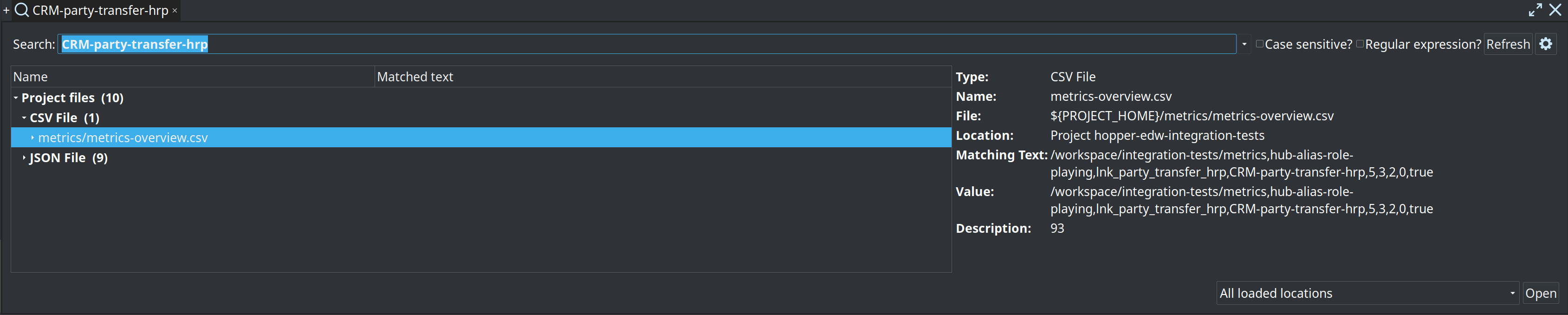
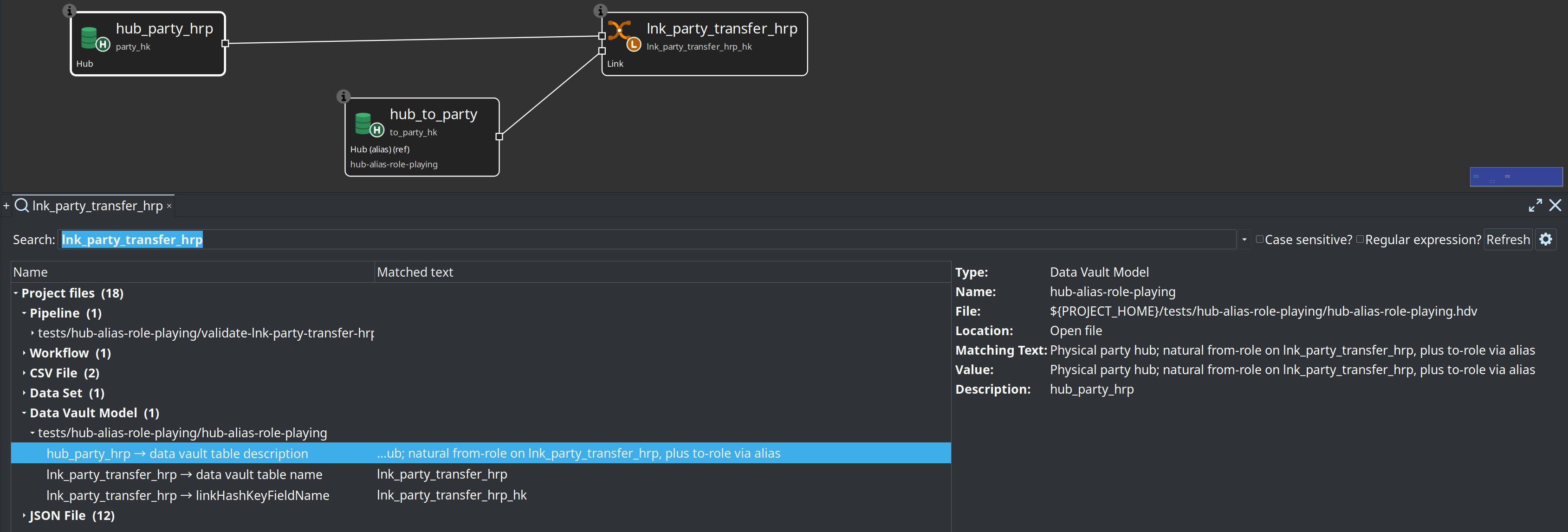
With Apache Hop 2.19, project Search Everywhere includes this plugin’s model files and metadata:
-
Files:
.hsm(source),.hdv(raw vault),.hbv(business vault),.hdm(dimensional) -
Content: table and query names, physical names, notes, configuration strings, published feed names, resource-definition-group model paths, quality rule fields, and related settings
-
Open: select a result to open the model (or metadata editor); model hits can jump to the matching table or source query on the canvas
Open editor tabs are searched from in-memory content so unsaved renames still match.
Full details: Project and metadata search.
Visual model editor
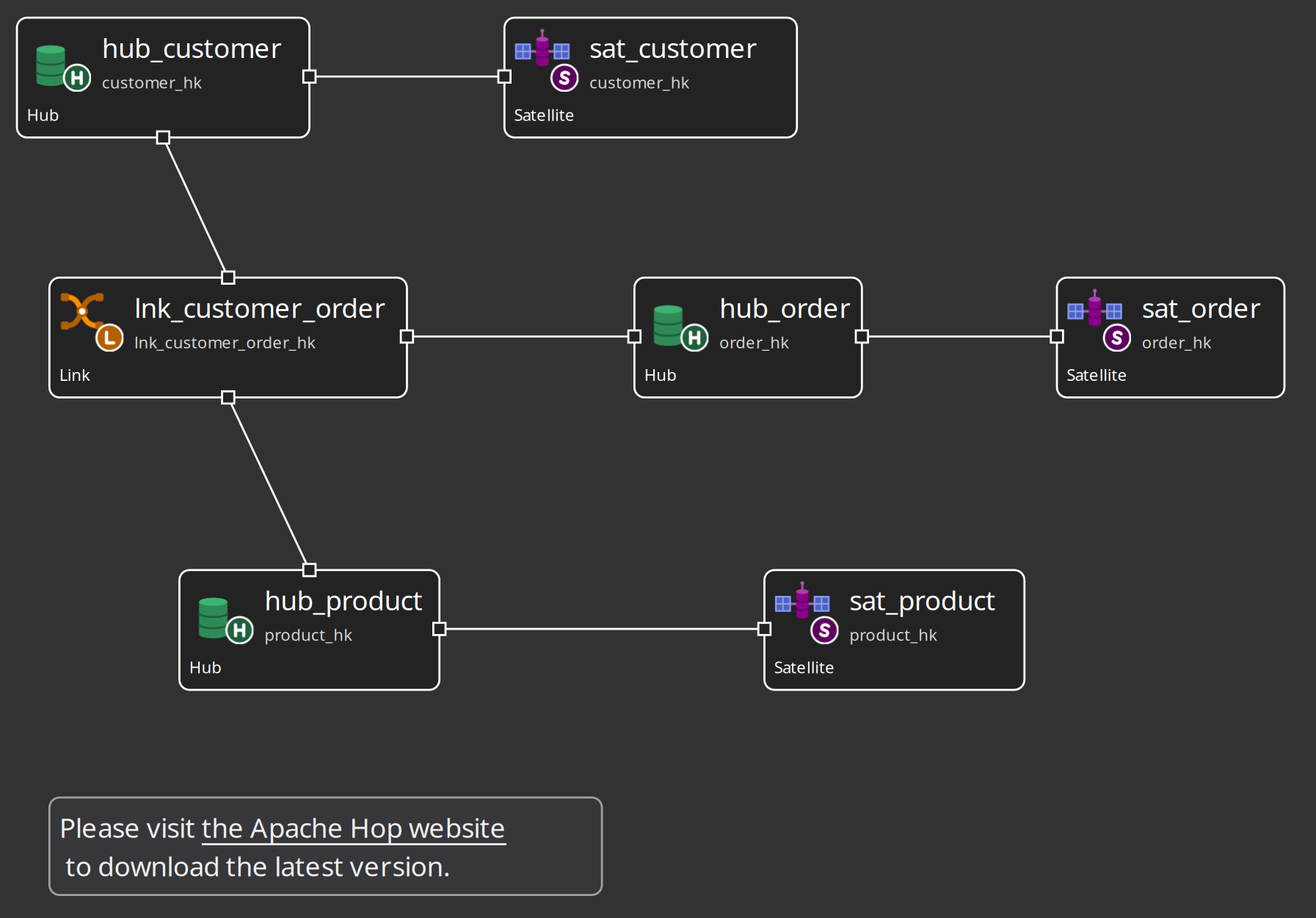
When you open a .hdv file you get a graphical editor comparable to the pipeline graph in Hop GUI.
Canvas interactions
The model editor follows the same touch-friendly interaction model as the rest of Hop GUI: left-click context menus with icon actions. There is no right-click menu and no double-click editing.
-
Drag Hubs, Links, and Satellites to position them on the canvas (drag the table icon body, not the name).
-
Left-click the canvas background to open the model context menu: Add Hub, Add Satellite, Add Link, Add note, Paste, Import sources, Edit model properties, and more.
-
Left-click a table icon (the body of the card, not the name) to open the table context menu: Edit, Delete, Show update pipeline.
-
Left-click a table name to open that table’s properties dialog directly (the name is shown underlined on hover).
-
Left-click a note to open the note context menu: Edit, Delete.
-
Drag relationships from one table to another using the middle mouse button or Shift+left-click on a table icon, then drop on a valid target. Supported pairs are hub↔satellite, hub↔link, and link↔satellite. The model stores the relationship by updating the appropriate name references on the table objects.
-
Lasso-select multiple objects; use the selection toolbar buttons or keyboard shortcuts to copy, cut, paste, or delete.
-
Annotation notes document the model without affecting loads. Add a note from the canvas context menu, edit or delete from the note context menu, and drag the resize handles to change size. On Apache Hop 2.19+, model notes reuse the same CommonMark/GFM Markdown canvas engine as pipeline and workflow notes (headings, emphasis, code, lists/task lists, tables, local images, horizontal rules). Pick a note type (General, Important, Warning, Information) for colors and accent icons. Links:
[Label](https://example.org)opens a URL; relative paths to Hop-openable files (for example.hpl/.hwf) open in Hop Gui when resolvable from the model file; bare names such as[Customer](hub_customer)still navigate to a table in the model.
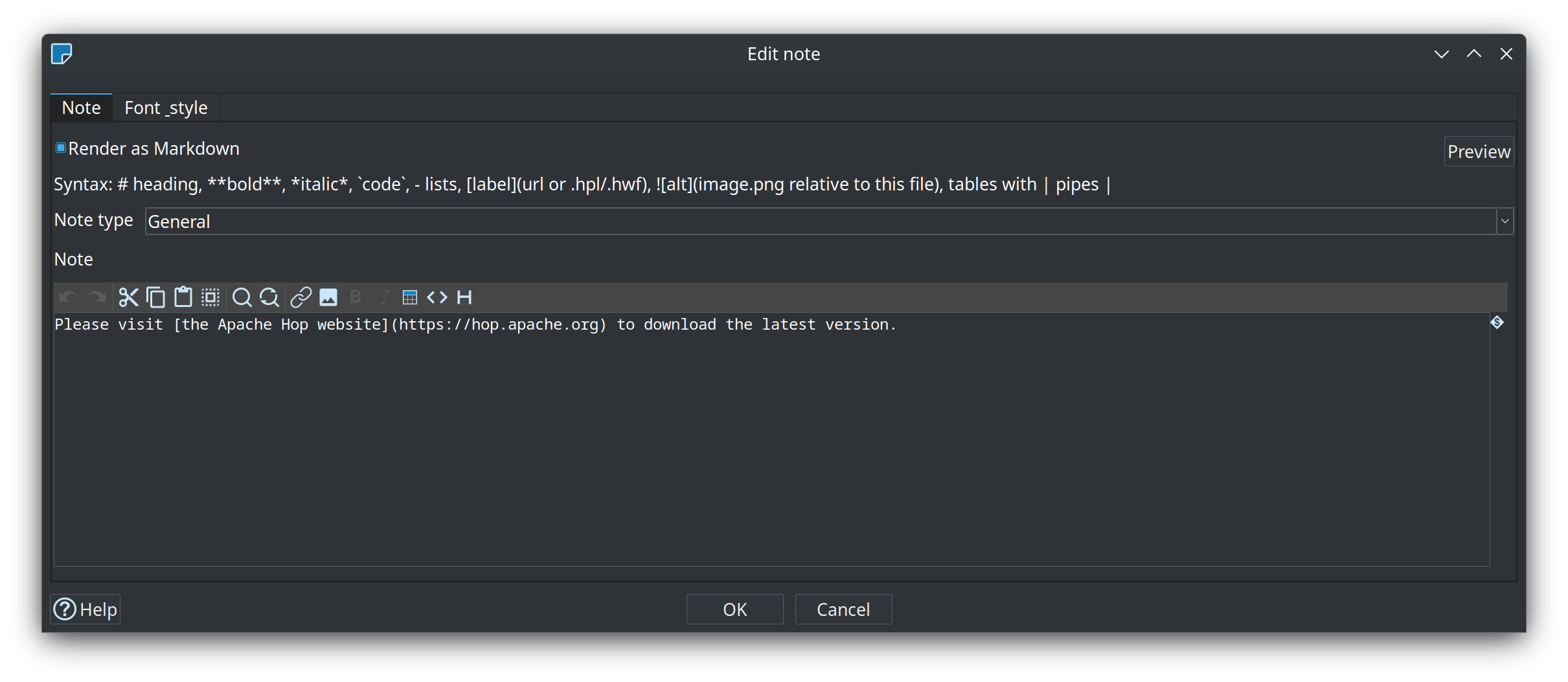
Rendered like this:

Toolbar
The model editor toolbar provides the main operations:

| Button | Purpose |
|---|---|
Edit model |
Opens the model properties dialog (name, description, and all configuration tabs). See Data Vault Configuration. |
Import sources |
Imports database tables as new Data Vault Source metadata objects (connection, schema, and field layout). |
Check model |
Runs validation and shows results in a Hop check dialog (missing keys, broken references, duplicate names, source-to-target type compatibility, and more). Always uses detailed data type checking (live source schema where supported). |
AI Help |
Opens the Hop AI Assistant workbench bound to the open |
Generate DDL |
Collects CREATE/ALTER statements for every table in the model against the configured target database and opens them in the SQL editor. |
Debug |
Generates update pipeline(s) for the selected table(s) and opens them in Hop for inspection or manual execution. |
Copy / Cut / Paste / Delete |
Clipboard operations for selected tables and notes (same pattern as pipeline graphs). |
Undo / Redo |
Snapshot-based undo/redo for model edits. The number of undo points kept in memory is configurable under Hop GUI → Configuration → Hopper EDW (default 200). |
Zoom |
Zoom in, out, 100%, and fit-to-screen, plus a zoom level selector. |
Edit model and configuration
Click Edit model on the toolbar. The dialog holds the model name, description, and a Configuration picker. When a project configuration is selected, hashing, sentinels, standard columns, target loading, and generated artifacts are edited on that configuration. When the picker is empty, those tabs edit the copy embedded in the .hdv.
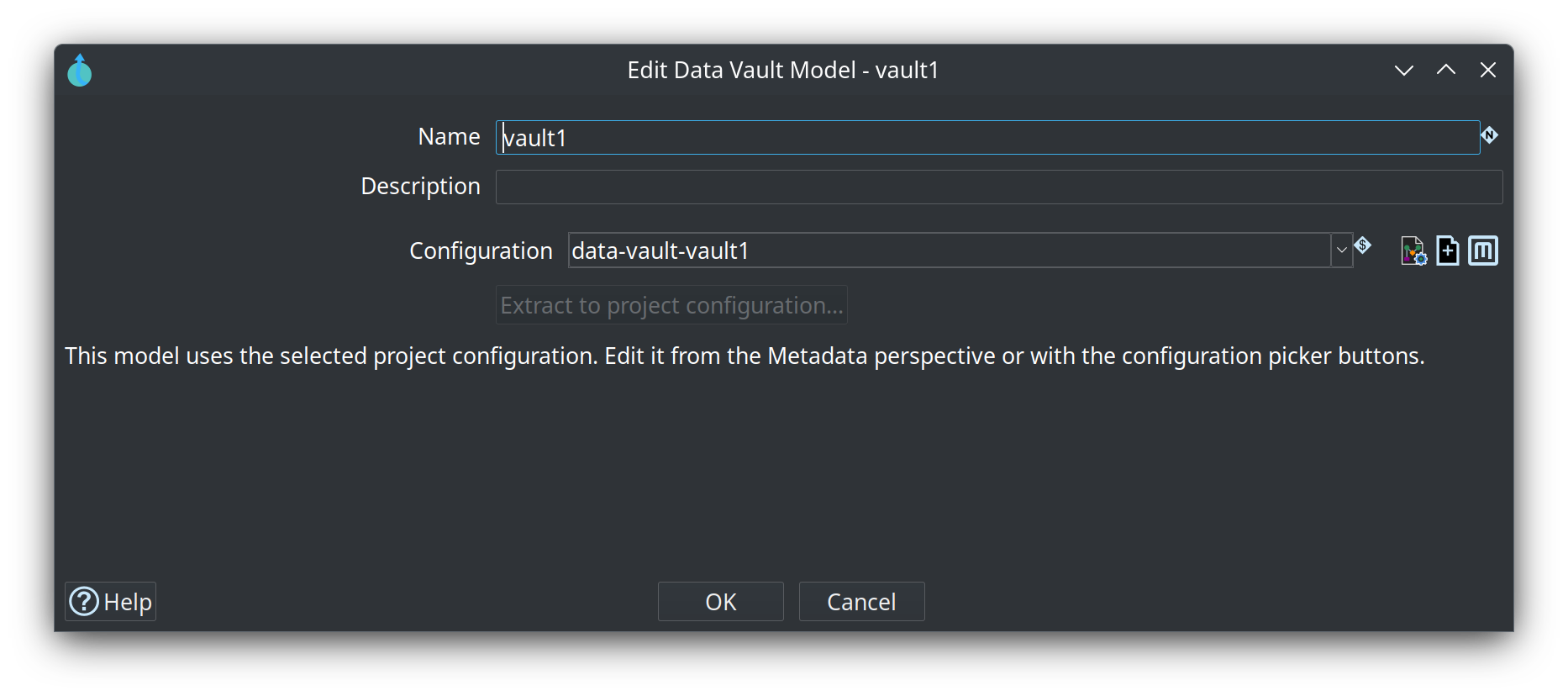
See Data Vault Configuration for a full description of every setting and tab screenshot.
Check model and Debug
Check model runs the same validations used by the Data Vault Update action. It reports structural problems (missing business keys, unattached satellites, links with fewer than two hubs, duplicate names, references to sources or hubs that do not exist) and source-to-target field type compatibility before any load pipelines are generated.
Source-to-target type validation
For every mapped field the check compares the source column type to the target column type:
-
Hub business keys (per record source on the hub)
-
Satellite explicit attributes, auto-attributes (when no attribute list is defined), and driving keys
-
Link hub-key mappings (
BusinessKeySourceentries)
Validation always uses detailed data type checking in the GUI: for database sources the plugin reads the live table schema. Stored SourceField metadata in the Data Vault Source is still used for target lengths and as a fallback when live resolution is unavailable.
Results use standard Hop check severities:
-
Error — type mismatch; source string/binary length or numeric precision exceeds the target definition; target database is not Unicode-capable for EDW string storage when enforcement is enabled (SQL Server without a
_UTF8collation, PostgreSQL non-UTF8 encoding, MySQL/SingleStore withoututf8mb4; plain MySQLutf8is incomplete UTF-8). Snowflake VARCHAR is UTF-8 and is treated as capable without a collation probe. Enforcement is a global option under Configuration → Hopper EDW (default on; off softens to a warning for migrations). On SQL Server, length overflow is judged against the vault UTF-8 byte capacity (model character length ×3, matching generatedVARCHAR), not the raw model number alone — so model length 50 (characters) is capacity 150, same as vault DDL. -
Warning — source length smaller than target (informational, character units); stored source metadata differs from the live schema (possible DDL drift); SQL Server physical type pairs that can sort differently in hub merge pipelines (for example source
NVARCHARvs targetVARCHAR) — generated SQL auto-applies a bridgeCOLLATEon source and target ORDER BY when live metadata is available; vaultVARCHARuses a UTF-8 collation and expands character lengths to UTF-8 byte lengths (×3) so multi-byte data fromNVARCHARsources is not truncated -
Comment — fast-check mode notice, or live resolution skipped for non-database sources
The Data Vault Update action exposes the same validation with a Detailed data type checking checkbox on the Model tab (default: enabled). When model check logging is on, errors are written with logError and warnings with logBasic.
Debug generates the actual update pipeline(s) for the selected table(s) and opens them in Hop so you can review or run them manually. Use Show update pipeline from a table’s context menu, or the toolbar Debug button when tables are selected. When the model defines a generated-pipeline folder, debug pipelines can be saved there as well.
The Data Vault Update action
For production use you normally drive loads from a workflow using the Data Vault Update action. It:
-
Loads the model from the
.hdvfile. -
Optionally runs the same model checks that the visual editor uses (with optional detailed data type checking).
-
Can be configured to log issues or abort if errors are found (check errors are logged with
logError). -
Optionally ensures unknown and invalid sentinel rows exist in hubs and links before loading.
-
Generates CREATE/ALTER DDL for the single target database when schema changes are needed.
-
Generates an update pipeline for every table in the model (optionally filtered by record source group).
-
Stages generated pipelines and runs them through a parallel orchestrator (
parallelPipelineCopies, optional staging folder). -
Runs all pipelines using the pipeline run configuration you specify.
-
Uses one consistent load date for the entire batch.
-
Collects row counts and error information from the generated pipelines.
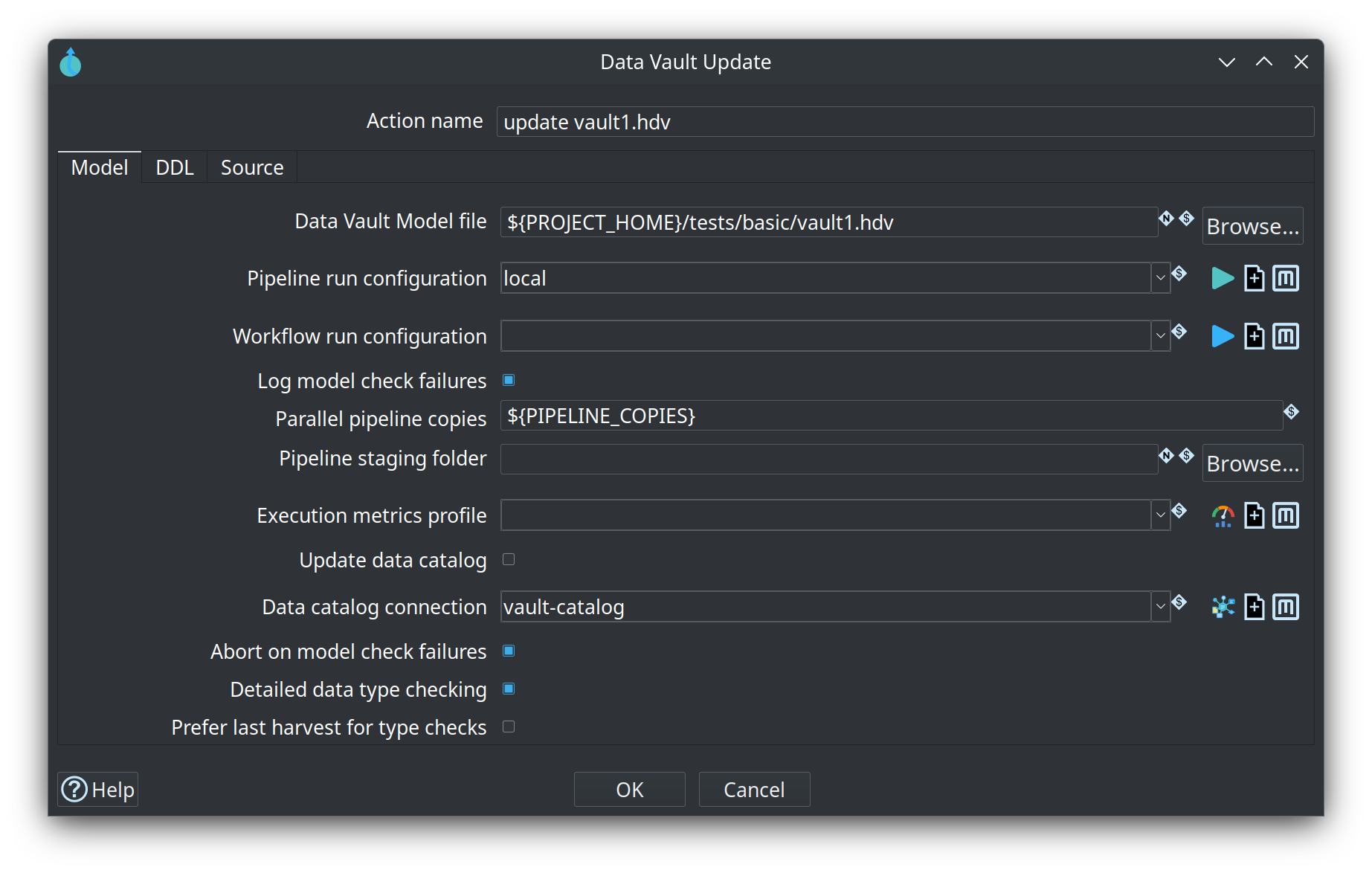
See Data Vault Update Action for all options and tab descriptions.
What you can configure
Each Data Vault Model embeds a configuration object that controls:
-
Which database the Data Vault lives in (one target database per model).
-
Hash algorithm (MD5, SHA-256, etc.) and how hash keys are stored (HEX by default; BINARY is compact and fully supported on Hop 2.19.0+ — see issue 7346).
-
Names for standard columns such as LOAD_DATE and RECORD_SOURCE.
-
Whether business keys should be trimmed and upper-cased before hashing.
-
A placeholder to use for NULL values during hashing.
-
Unknown and invalid sentinel record generation and values.
-
Target table batch size and optional folder/prefix settings for generated pipelines.
Most hashing and naming settings apply model-wide. Individual hubs, links, and satellites can still override specific column names (for example the hash key field name or record source field name on a hub) where the dialog provides that option.
Sources
Before you can load a Hub, Link, or Satellite you need Data Vault Source metadata that describes where the data comes from and how rows should be tagged with a record source value.
-
A Data Vault Source gives the feed a logical name, optional static or column-based record source indicator, and an optional group tag used to filter which sources are processed in a given workflow run.
-
For database feeds, the source editor includes a Database tab with the connection, schema, table, and field layout (including primary-key flags). Physical source details are embedded in the Data Vault Source rather than maintained as a separate metadata type.
The Import button (in the source editor and on the model toolbar) can read the live column list from a database, which saves typing and helps ensure lengths and types are accurate.
Hubs have a dedicated Record sources tab where you attach multiple sources to a single hub table. Business keys on the hub can be tagged with a Source system so each source can use its own column names. Links and satellites reference a single default record source.
See Data Vault Source and Database source details.
Hubs, Links, and Satellites
Each definition has its own dialog with the fields relevant for that type:
-
Hubs need one or more business keys and one or more record sources. Use Load from source on the Keys tab to pull business keys from a chosen source.
-
Satellites attach to a Hub or a Link. Use Load from source on the Attributes tab to populate the attribute list from the source.
-
Links connect two or more Hubs, with optional driving keys (role-playing), optional dependent child keys (transactional / non-historized grain), and explicit hub source key field mappings when column names differ from the hub definitions.
See Hubs, Links, and Satellites for field-level reference.
Plugin-wide GUI options
Under Hop GUI → Configuration → Hopper EDW you can set options that apply across all open models:
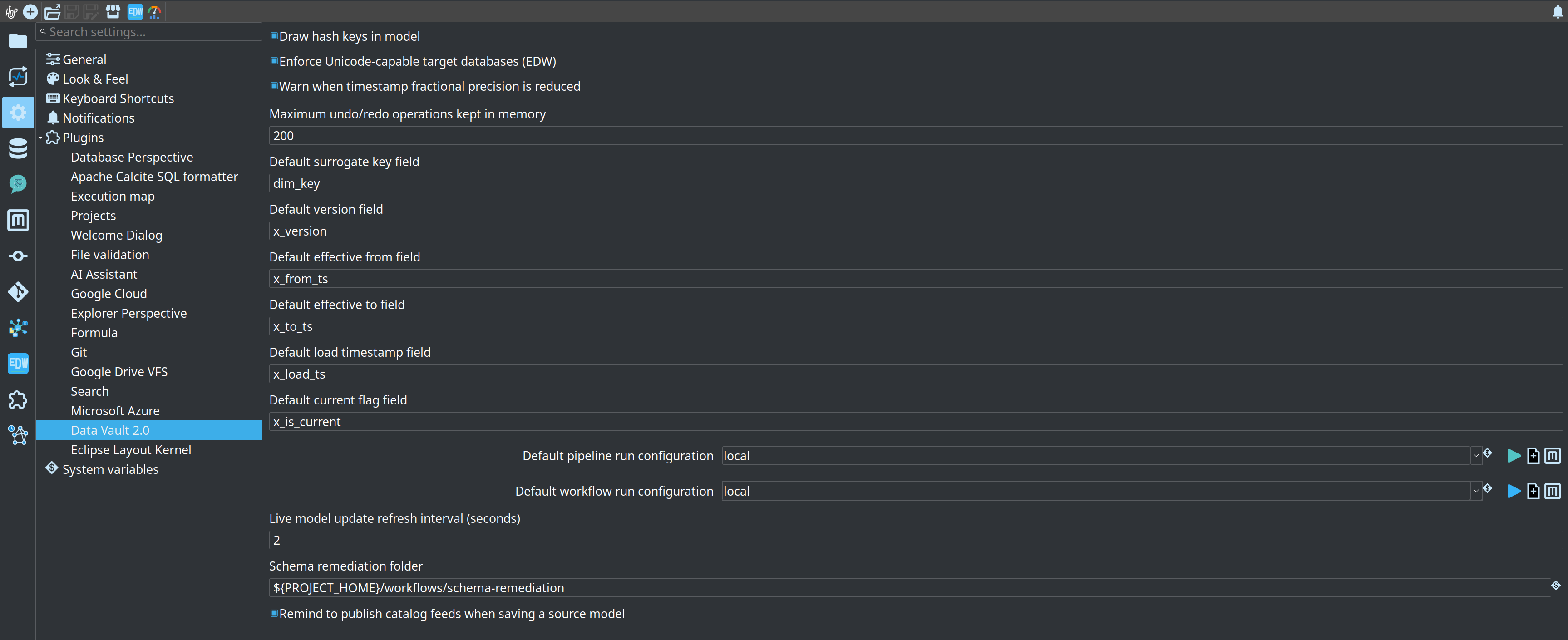
-
Draw hash keys in model – When enabled, hash key column names are shown on table cards in the visual editor.
-
Remind to publish catalog feeds when saving a source model – When enabled (default), saving a
.hsmwhose published catalog feeds lag the canvas asks whether to publish them. The dialog has Don’t remind me after save; you can turn the option back on here. -
Maximum undo/redo operations kept in memory – Size of the snapshot undo stack for
.hdvfiles (default 200). -
Load runs shown in the model metrics panel – How many recent executions the panel to the right of a model lists (default 20).
Business Vault
Business Vault models (.hbv files) build consumption-layer tables from raw Data Vault satellite history. The primary table type today is functional SCD Type 2: attribute timelines with valid_from / valid_to (or your column names) derived from a configurable functional timestamp, not only the technical load date.
-
Link each
.hbvfile to a.hdvData Vault model. -
Define SCD2 tables with one or more satellite derivatives.
-
For multi-satellite merges (e.g. Customer 360), provide explicit field mappings and per-satellite configs.
-
Use Debug / Show build pipeline to inspect generated pipelines; use the Business Vault Update workflow action for production rebuilds.
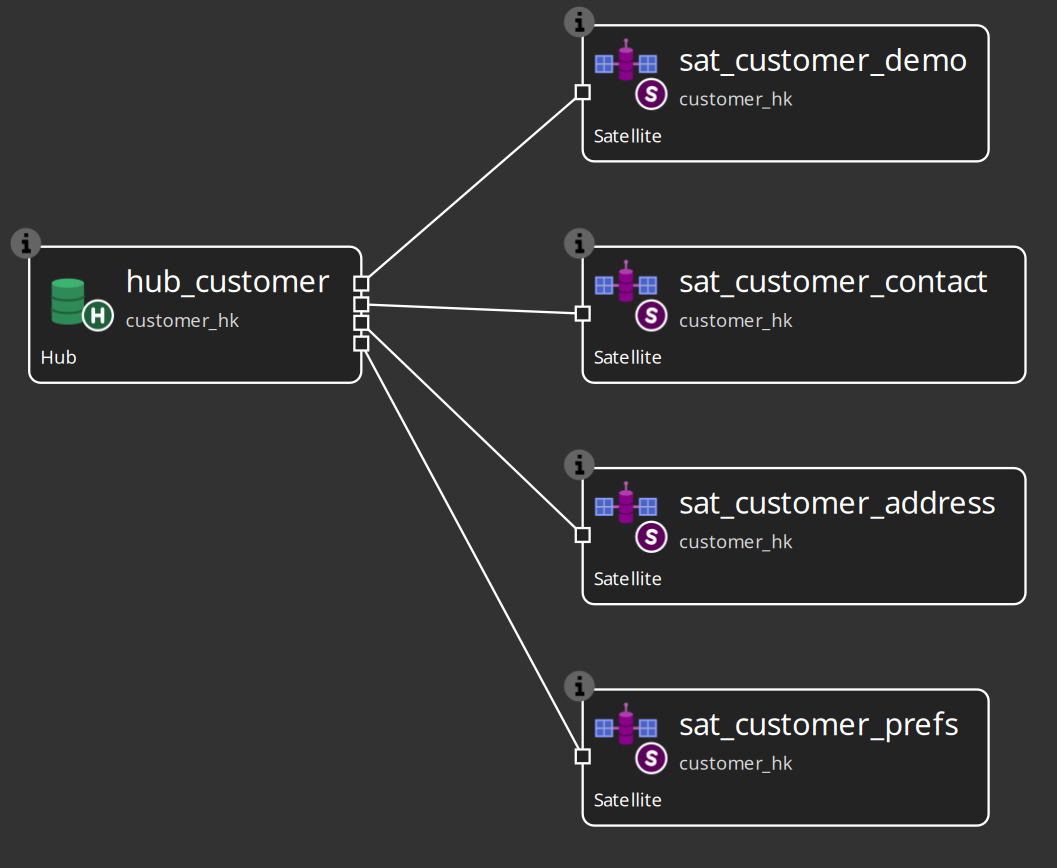
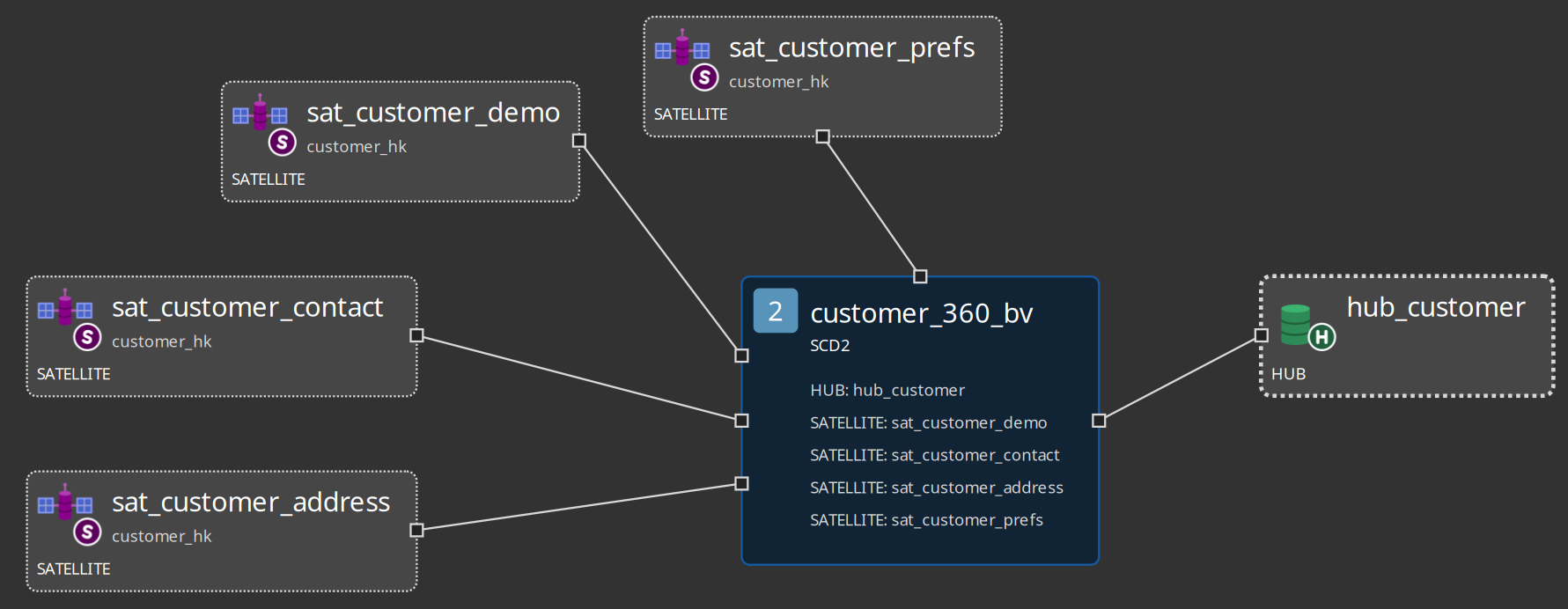
PIT tables are also modeled in .hbv files; pipeline generation uses the PIT prefix from Business Vault configuration.
Integration modes
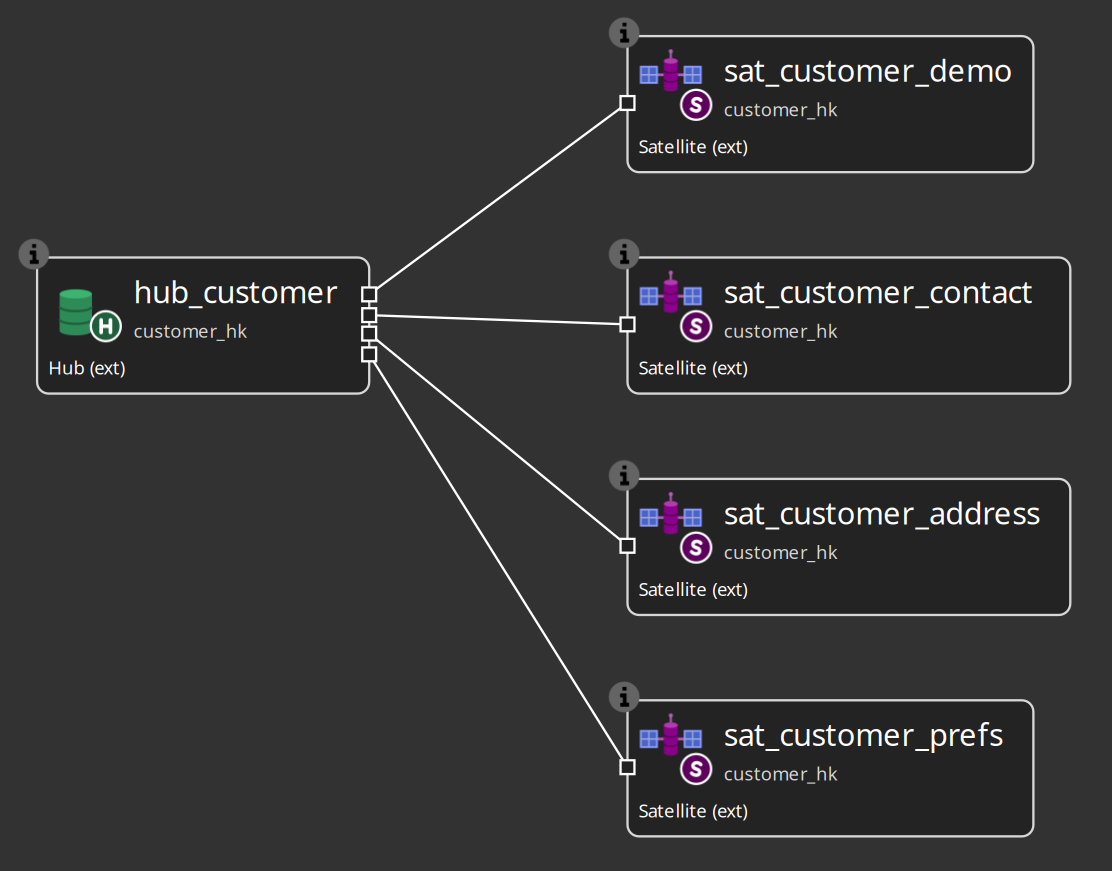
Hubs, links, and satellites can be Hop managed (default), External read-only, or Custom pipelines. External tables participate in Business Vault and catalog publish without Hop-generated DDL or update pipelines.
AI advisory
The AI Help toolbar button opens the Hop AI Assistant workbench bound to the vault model for source analysis, modeling suggestions, layout proposals, and troubleshooting. Proposals can be reviewed and applied selectively.
Getting started
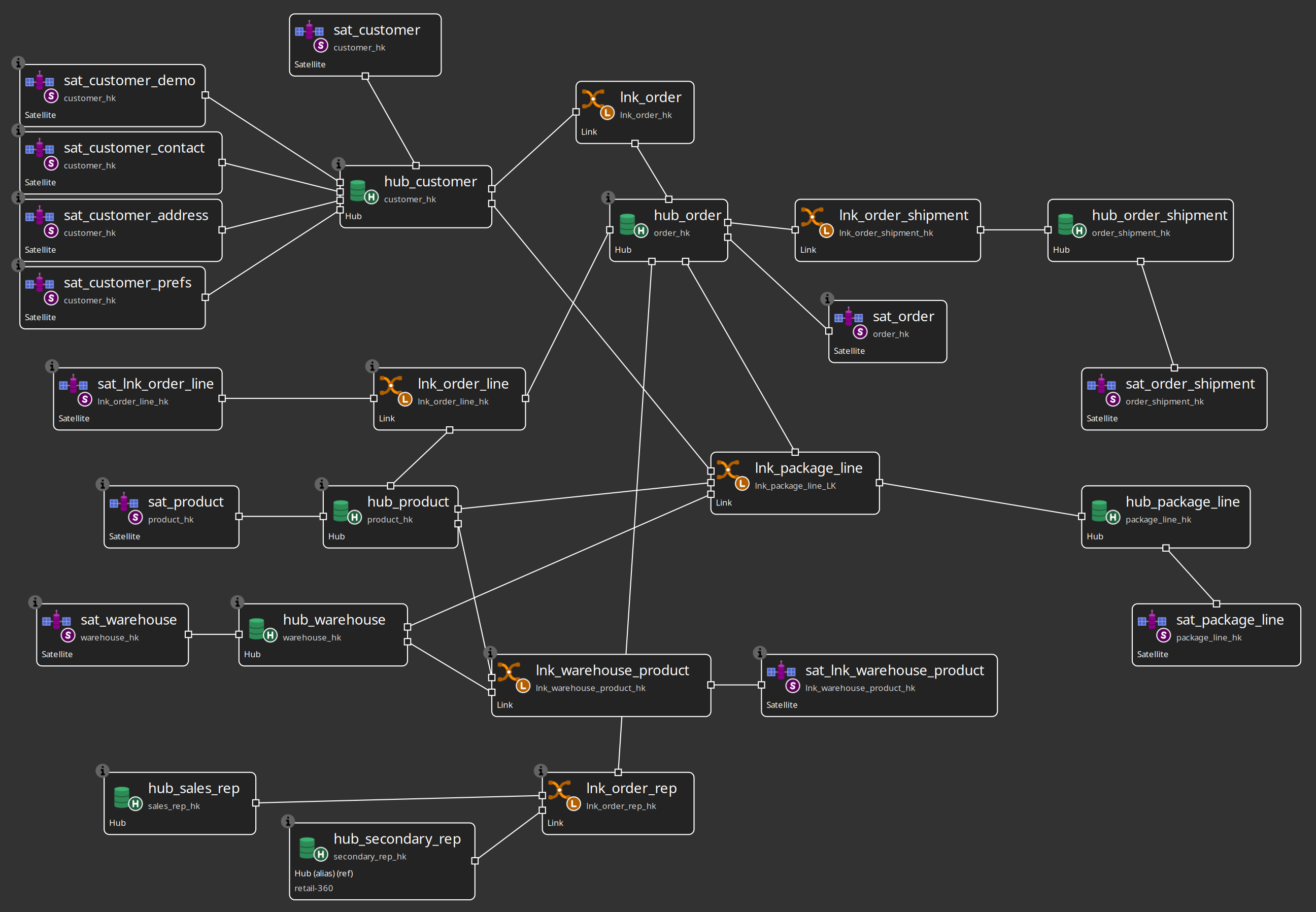
Build from scratch: Getting started — building an EDW. Tour the finished sample: Getting started — retail example. Advanced fixtures: integration test fixtures.
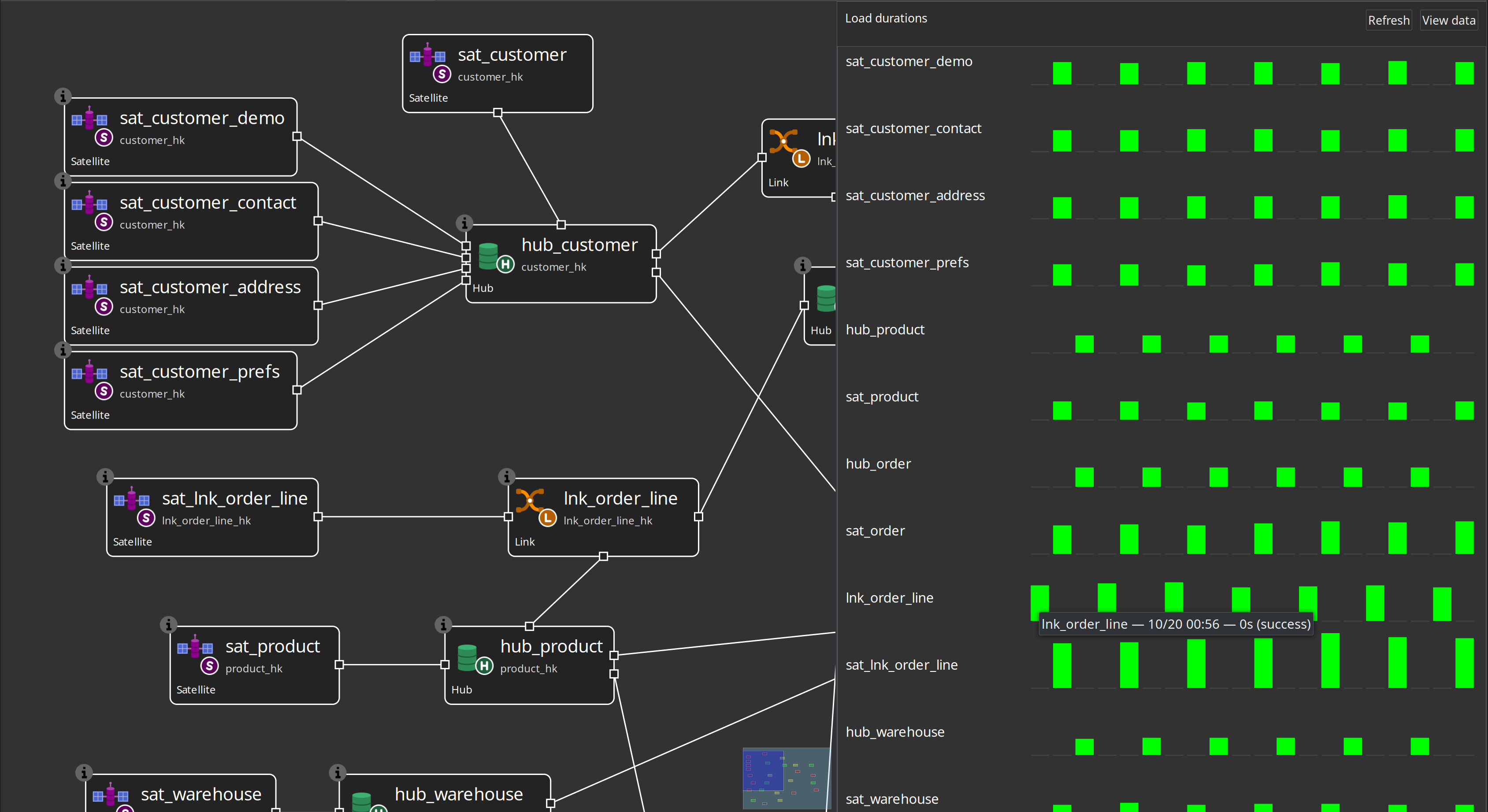
With an execution metrics profile and OPS database, the model canvas can show recent load durations per table:
Executives and architects can review Data Hopper EDW overview slides.
Current capabilities
Today the plugin supports:
Raw Data Vault
-
Composite business keys and multi-active satellites.
-
Role-playing hubs in links via driving keys.
-
Transactional (non-historized) links via dependent child keys included in the link hash.
-
Explicit source-to-hub key mappings for links.
-
Static or column-based record source indicators and record source groups for partial loads.
-
Unknown and invalid sentinel rows in hubs and links.
-
Load end date and status tracking satellite patterns.
-
Integration modes: Hop managed, external read-only, custom pipelines.
-
Choice of hash algorithm and hash key storage format.
-
Automatic creation or alteration of target tables (DDL) before loading.
-
Model validation that catches structural problems and source-to-target type mismatches before you run a load.
-
Parallel staged pipeline execution for faster multi-table updates.
-
Visual debugging, DDL preview, clipboard editing, undo/redo, and production execution via workflow actions.
-
Canvas annotation notes with typed styling and in-model navigation links.
Business Vault
-
.hbvvisual modeler linked to.hdvmodels. -
SCD2 build pipeline generation (single- and multi-satellite).
-
PIT table type and Business Vault Update workflow action.
-
Navigate from BV to DV tables in Hop GUI.
Tooling
-
Data catalog integration and optional publish after DV/BV updates.
-
AI advisory with review-before-apply proposals.
-
Project / Search Everywhere (Hop 2.19): search
.hsm,.hdv,.hbv, and.hdmcontent and plugin metadata (resource definition groups, catalog connections, metrics profiles, quality rule sets). See Project and metadata search. -
Architecture export, OpenLineage / Marquez export, execution maps, and multi-layer Update resource definition group loads.
Future work may deepen catalog record-definition search and further source-system modeling convenience.
If you are new to Data Vault 2.0, the plugin encourages good practices by making the key decisions (hashing, naming, source tracking, change detection) explicit and reusable through the model configuration and source metadata objects.