- Prerequisites
- Chapter 1 — Data Vault concepts
- Chapter 2 — Explore sources and the basic model
- Chapter 3 — Validate and inspect pipelines
- Chapter 4 — Run a raw vault load
- Chapter 5 — Introduce Business Vault (single satellite)
- Chapter 6 — Multi-satellite Customer 360
- Chapter 7 — External read-only raw vault tables
- Chapter 8 — Production workflow pattern
- Chapter 9 — Troubleshooting
- Chapter 10 — Next steps
Reference walkthrough for advanced Data Vault and Business Vault patterns in the integration-tests/ project: multi-satellite Customer 360, external read-only raw vault tables, and golden-dataset regression suites.
To build an EDW from scratch, start with Getting started — building an EDW. To tour the finished retail sample (CSV → DV → BV → dimensional), see Getting started — retail example.
Estimated time: half a day with Hop GUI, or follow along read-only first.
Prerequisites
-
Register
integration-tests/as a Hop project namedhopper-edw. -
Configure database connections
CRMandVaultin project metadata (metadata/rdbms/CRM.json,metadata/rdbms/Vault.json). -
Install Data Hopper EDW plugin in Apache Hop 2.20.0-SNAPSHOT.
-
Open the project in Hop GUI so
${PROJECT_HOME}resolves.
Full environment details: Integration tests Hop project.
Chapter 1 — Data Vault concepts
Data Vault 2.0 uses three building blocks:
-
Hub — a core business entity (Customer, Product) identified by business keys
-
Link — a relationship between hubs
-
Satellite — descriptive history attached to a hub or link; insert-only when attributes change
Record sources in the Data Catalog describe where staging data lives (connection, table, columns, record-source indicator).
The plugin stores hubs, links, and satellites in a Data Vault model (.hdv file) with embedded configuration (hashing, target database, column names).
Chapter 2 — Explore sources and the basic model
-
In Hop GUI, open
integration-tests/tests/basic/vault1.hdv. -
Click Edit model and note the target database (
Vault) and hashing settings. -
Inspect hubs, links, and satellites on the canvas.
-
Open a hub dialog — review business keys and Record sources.
Sources for this model live in the data catalog under catalog-data/hop/integration-tests/sources/ (CRM-customer, CRM-order, etc.).
Optional: run integration-tests/run-tests.sh tests/basic/update-vault1.hwf from the command line to see a full load without using the GUI.
Chapter 3 — Validate and inspect pipelines
On the vault1.hdv toolbar:
-
Click Check model — fix any errors before continuing.
-
Click Generate DDL — preview CREATE/ALTER for the Vault database.
-
Select
sat_customer, then Debug (or Show update pipeline) — inspect the generated insert-only satellite pipeline.
The same generation logic runs in the Data Vault Update workflow action.
Reference: Plugin overview, Data Vault Update action.
Chapter 4 — Run a raw vault load
-
Open workflow
integration-tests/tests/basic/update-vault1.hwf. -
Run it (or run via
integration-tests/run-tests.sh).
The workflow creates CRM tables, loads CSVs, drops vault tables, runs Data Vault Update twice (initial + incremental), and validates against golden datasets.
You now have raw satellite history in the Vault database — the input for Business Vault.
Chapter 5 — Introduce Business Vault (single satellite)
-
Open
integration-tests/tests/basic/vault1.hbv. -
Note Data Vault model file →
${PROJECT_HOME}/tests/basic/vault1.hdv. -
Open the SCD2 table
sat_customer_hb— it references satellitesat_customer. -
Click Edit model on the BV toolbar — target database, valid from/to defaults, sentinels.
-
Check model, then Show build pipeline on the SCD2 table.
This is the simplest BV pattern: one satellite → one functional SCD2 table.
Reference: Business Vault overview, Business Vault SCD2.
Chapter 6 — Multi-satellite Customer 360
-
Open
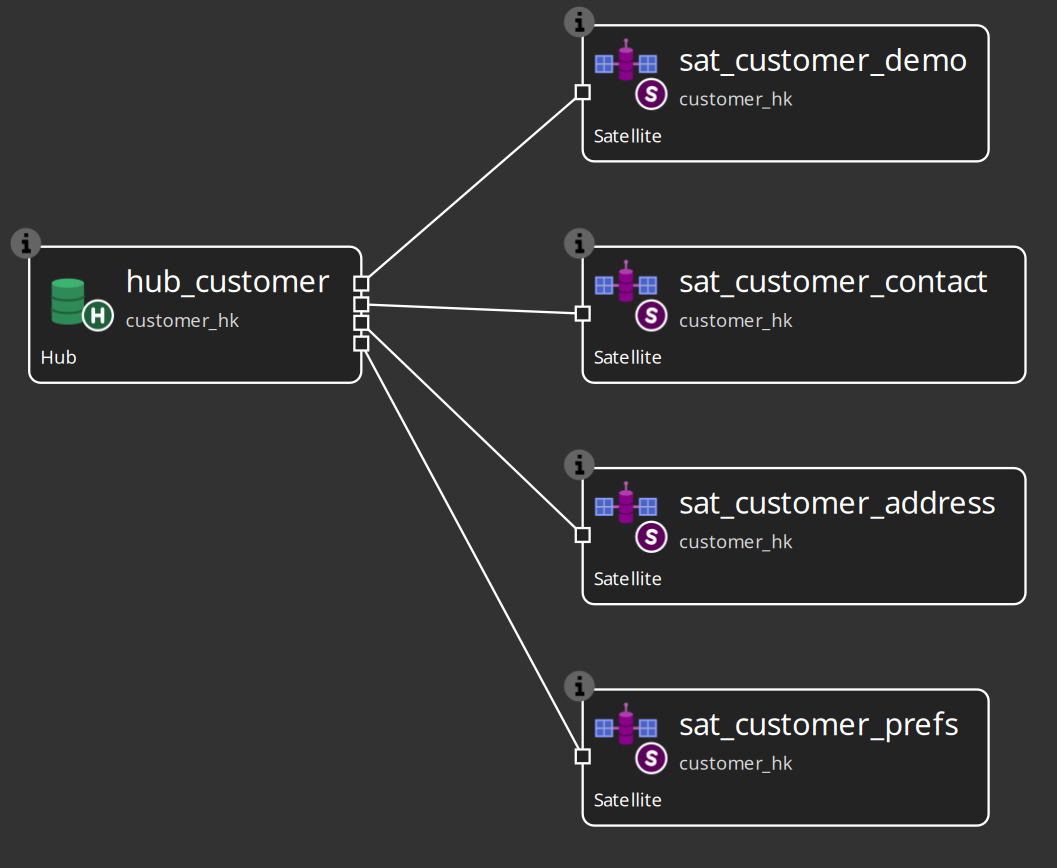
integration-tests/tests/multi-satellite-bv/customer-360.hdv— one hub, four satellites.
-
Open
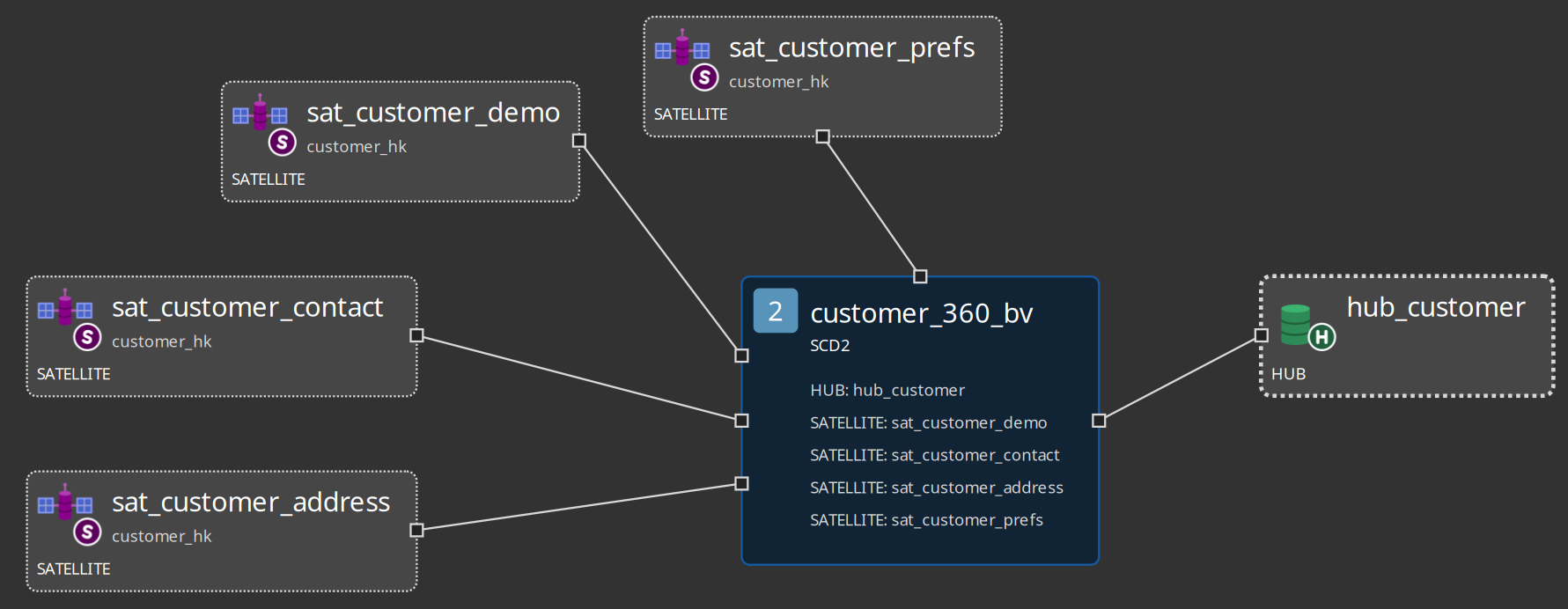
integration-tests/tests/multi-satellite-bv/customer-360.hbv.
-
Open SCD2 table
customer_360_bv:-
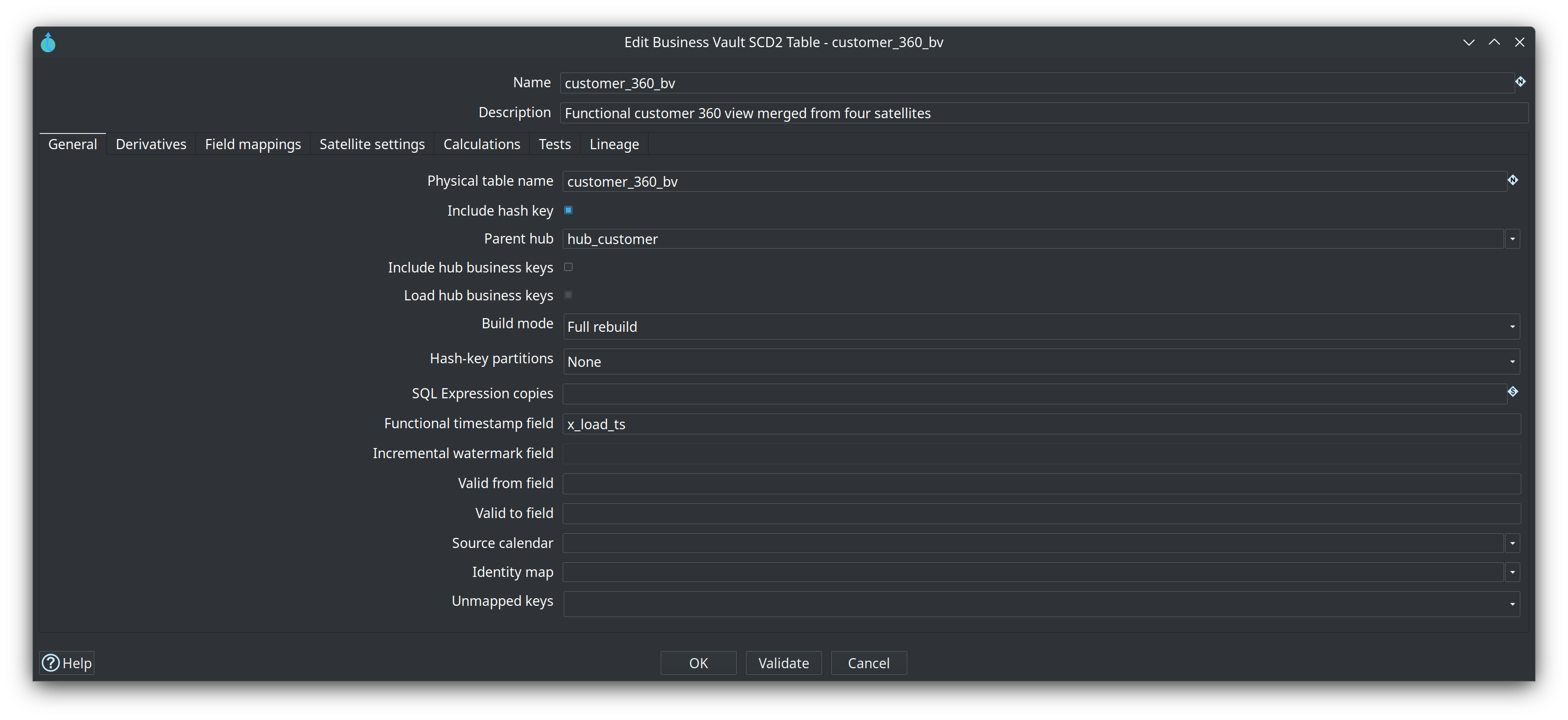
General — parent hub
hub_customer, build mode Full rebuild -
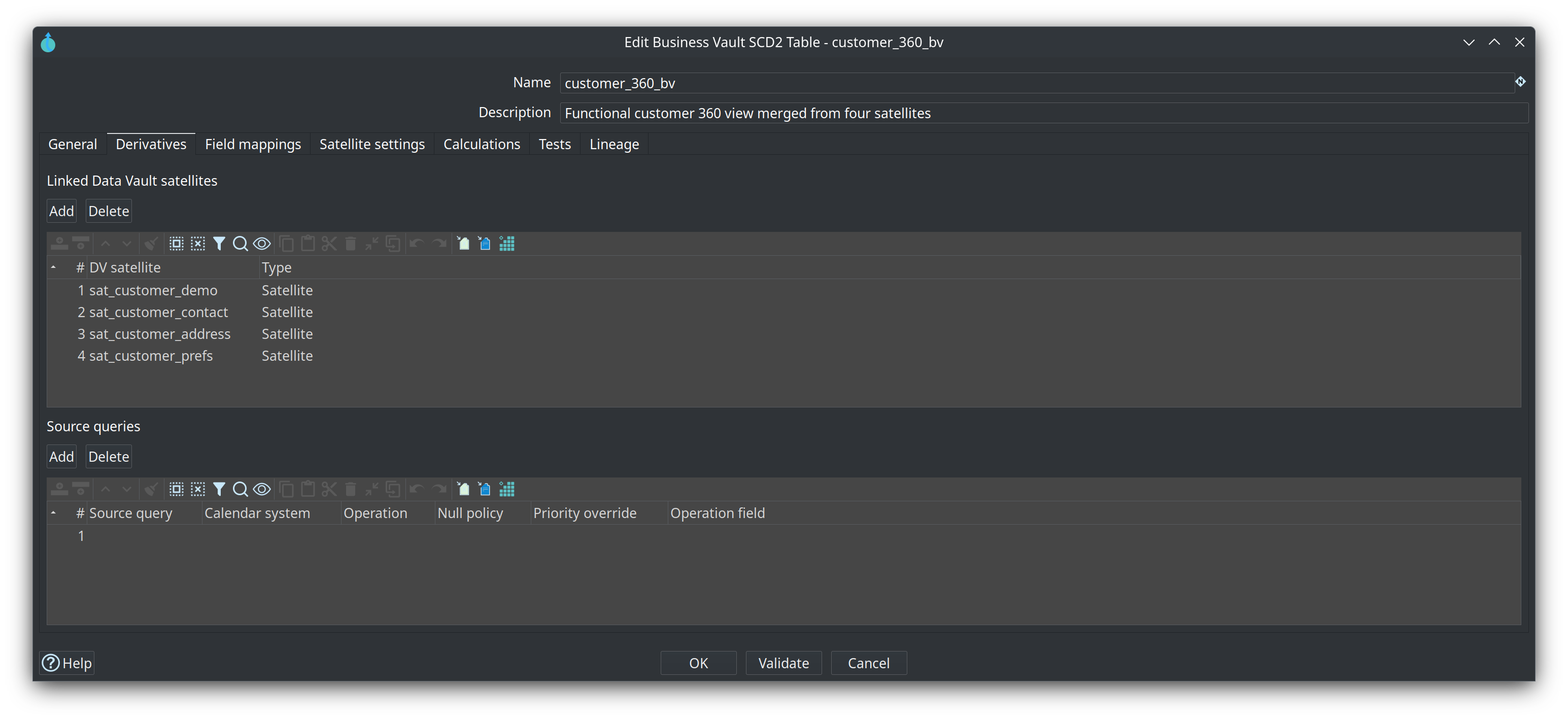
Derivatives — four satellites
-
Field mappings — rename attributes to
cust_*columns -
Satellite settings — per-satellite source indicator
-
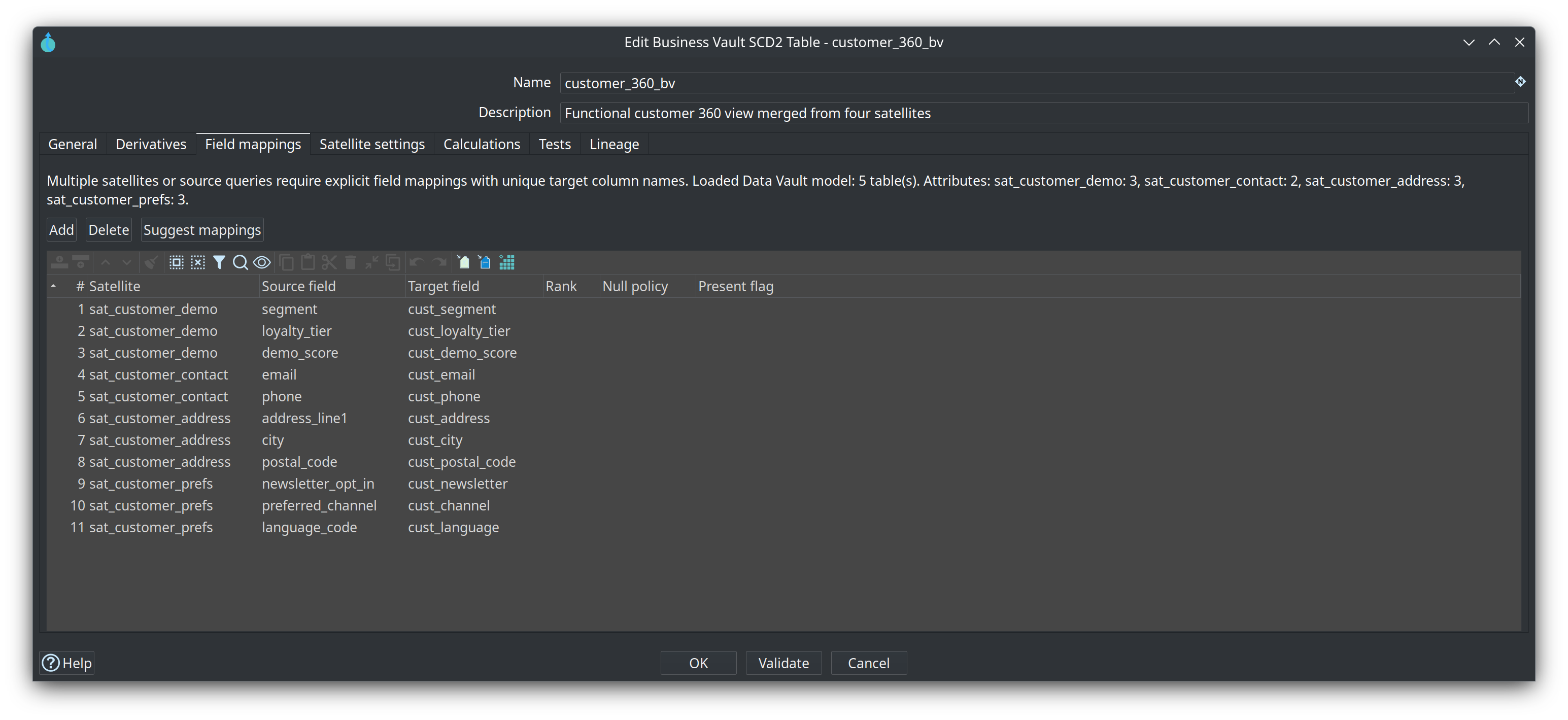
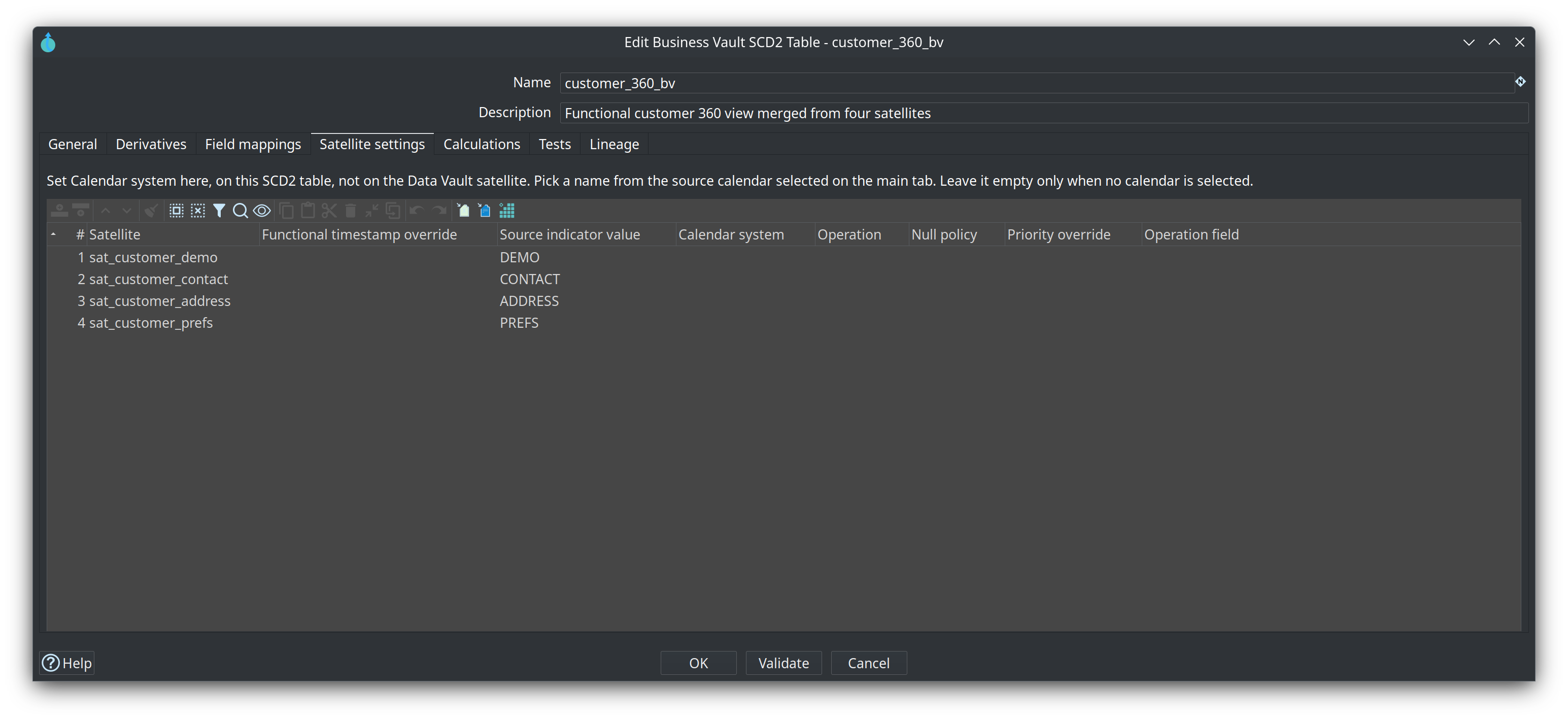
-
Check model — multi-satellite rules require explicit mappings.
-
Reload DV model (toolbar) if you edited the
.hdvon disk. -
Show build pipeline — expect multiple
TableInputbranches,SortedSchemaMerge,RepeatFields, analytic validity,TableOutput.
Run integration-tests/tests/multi-satellite-bv/update-customer-360.hwf for end-to-end DV load + BV rebuild + validation.
For incremental SCD2, open customer-360-incremental.hbv (same mappings, buildMode=INCREMENTAL) and run update-customer-360-incremental.hwf. That workflow runs the same DV load waves, then Business Vault Update with the incremental pipeline, and validates against the same golden current-state dataset.
For a large-table Full rebuild split, open customer-360-partitioned.hbv (hashKeyPartitionCount=4) and run update-customer-360-partitioned.hwf. Same golden current-state dataset; the target is truncated once, then four hash-key slices are loaded.
Chapter 7 — External read-only raw vault tables
When dbt or another tool loads raw vault tables, Hop can still model them for Business Vault.
-
Open
integration-tests/tests/multi-satellite-bv/customer-360-external.hdv. -
Open each satellite dialog → Options tab → Integration mode = External read-only.
-
Canvas shows
(ext)on those tables.
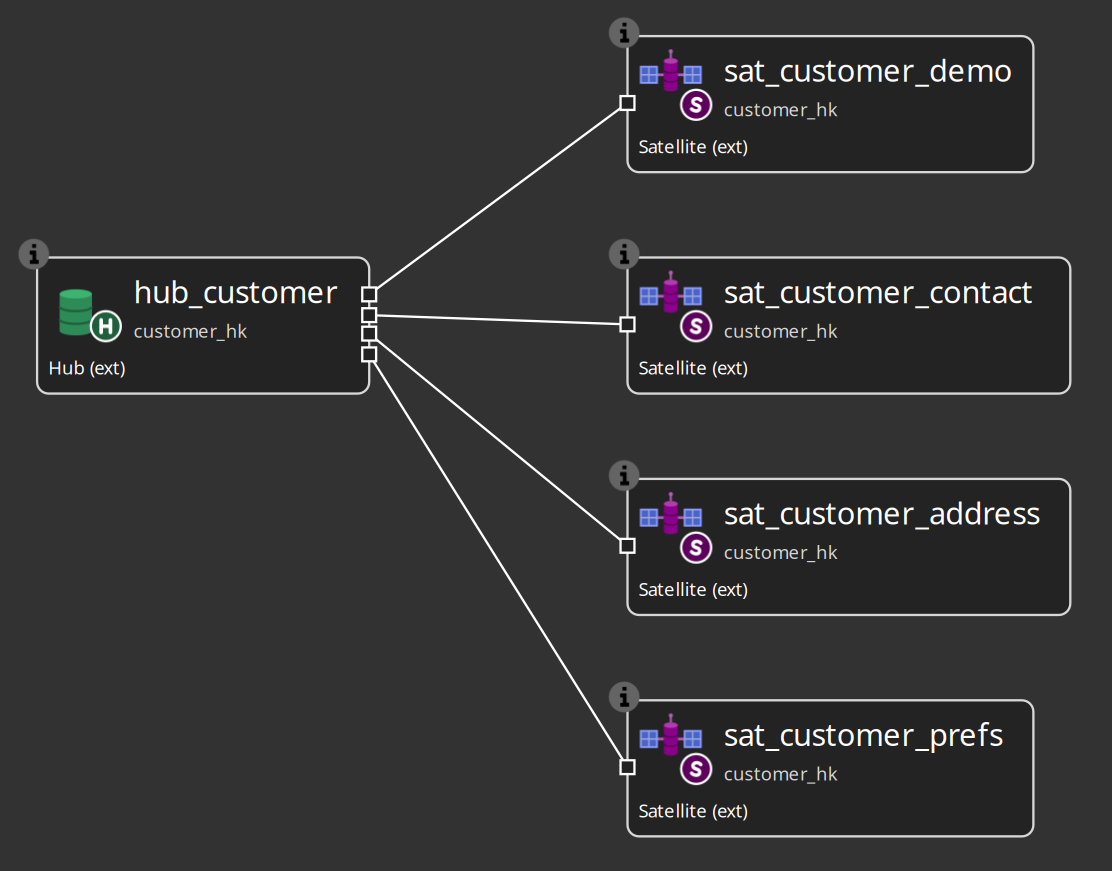
-
Open
customer-360-external.hbv— same BV SCD2 definition as the hop-managed variant. -
Check model and Show build pipeline — BV reads satellite history from the Vault database using metadata only; Data Vault Update skips DDL/pipelines for external tables.
Reference: Data Vault integration modes.
Chapter 8 — Production workflow pattern
Typical batch:
-
Data Vault Update on
.hdv— load raw vault (skip external tables automatically) -
Business Vault Update on
.hbv— rebuild SCD2 tables
Configure pipeline run configuration, parallel copies, optional DDL and catalog publish on each action.
Reference: Business Vault Update action.
Chapter 9 — Troubleshooting
| Symptom | What to check |
|---|---|
Cannot load linked |
|
SCD2 pipeline: target database required |
Vault connection in project metadata; target database on both |
Validation passes but pipeline fails |
Reload DV model before generate; stale cache was a common cause |
External satellite empty in BV |
Warehouse table must exist and match modeled attributes; Vault connection must read it |
Type check errors on hub/satellite |
Run Check model with detailed type checking; align source catalog with live CRM schema |