Hop can search any registered file type that opts into project search, plus project metadata objects. Data Hopper EDW uses that API so modelers can find vault tables, source queries, group model paths, and related configuration without browsing the file tree by hand.
Requires Apache Hop 2.20.0-SNAPSHOT.
Where to search
Use Hop GUI Search Everywhere (global search) or the project search UI. Enumeration includes:
-
Files under the current project home (same walk as pipelines and workflows)
-
Open tabs (in-memory model content, including unsaved edits)
-
Project metadata (JSON under the project metadata folder)
Fuzzy matching on object names is provided by Hop; content matching uses plugin analysers.
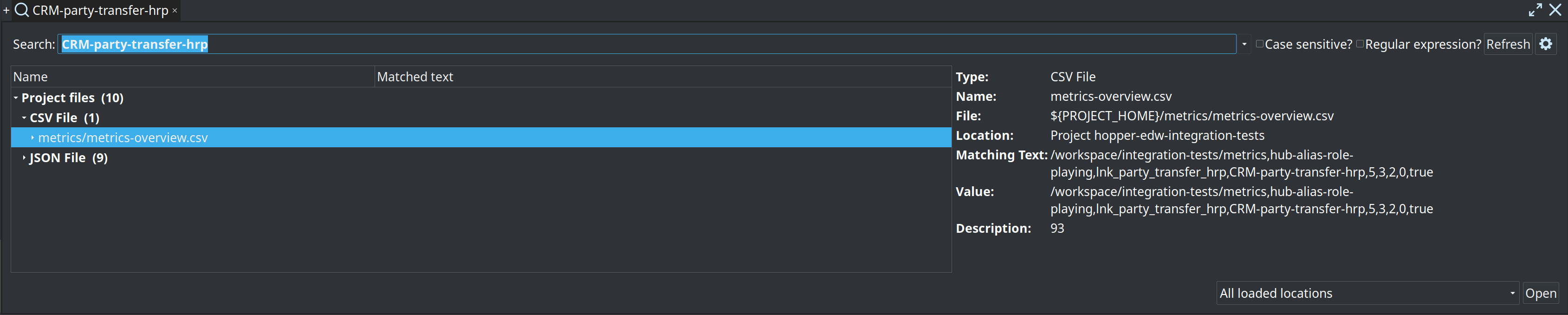
Search Everywhere (quick popup) groups hits by location and type. Here a source record name matches a Data Vault model component under Project files:
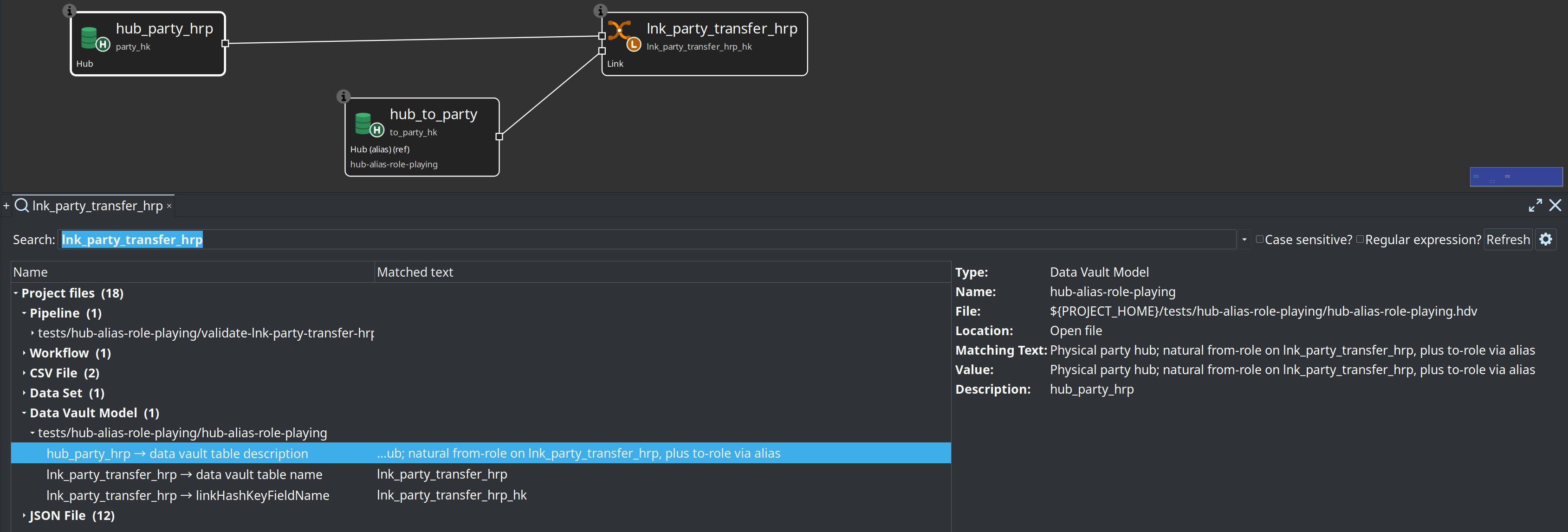
The full Search panel lists matched text, model type, file path, and property description for each hit (for example a link source field value):
Model files
These extensions participate when the plugin is installed (including Hop Lineage View .hlv definitions):
| Extension | Type label | Typical searchable content |
|---|---|---|
|
Source Model |
Model name/description; physical table names and schemas; relationship names; source query names, WHERE clauses, published catalog feed names, column aliases |
|
Data Vault Model |
Model name/description; hub/link/satellite names and physical table names; configuration fields; canvas note text; nested source/field properties |
|
Business Vault Model |
Model name/description; BV table names; DV model path; configuration; SCD2/SQL nested properties; notes |
|
Dimensional Model |
Model name/description; dimension/fact/bridge names; business process fields; configuration; nested mappings; notes |
|
Hop Lineage View |
Filename/description; lineage backend name; logical table; dataset and job names; model file |
Opening a result
When you open a model hit:
-
Hop opens the file (or focuses an already open tab).
-
If the hit is tied to a table or source query name (the search component), the canvas selects that object and opens its editor when possible.
Retail examples worth trying in retail-example:
-
hub_customer,sat_customer,lnk_order_line -
All customer info,feed_customer_enriched(source model query / published feed) -
A BV SCD2 or dimensional fact table name from your models
Plugin metadata
Project @HopMetadata objects are always listed by Hop; the plugin adds content analysers so more than the metadata name matches.
| Metadata type | Key | Searchable content |
|---|---|---|
Resource definition group |
|
Name, description, default catalog connection, DV/BV/DM model file paths |
Data catalog connection |
|
Name, description, nested catalog settings (for example FILE storage directory) |
Execution metrics profile |
|
Name, description, metrics folder, catalog/DB connection names, operations schema |
Data quality rule set |
|
Name, description; each rule id, name, field name, parameter values |
Business process catalog |
|
Name, description; domain and process level names, parents, descriptions |
Lineage backend |
|
Name and description (Hop lists metadata by name; URL/folder stay on the editor) |
Opening a metadata hit uses Hop’s standard metadata editor (editMetadata).
Retail example: search retail-360.hdv or retail-sources to land on the retail-sources resource definition group.
What is not searched (yet)
-
Catalog FILE record definitions under the data catalog storage root (for example
work/edw-catalog/…) — those are not project metadata; use the Data Catalog perspective filters. -
Generated staging pipelines unless they exist as normal
.hplfiles on disk. -
Execution maps (
.hem) — not opted into search in this release.
Related documentation
-
Feature overview — maturity matrix
-
Data Vault plugin — visual editor overview