The EDW Journey perspective is the Hop GUI map of one warehouse: source models and catalog feeds, harvest / schema gate / quality controls, raw Data Vault, Business Vault, dimensional models, the workflows that run them, and generated reports.
It does not replace the Data Catalog, model canvases, execution maps (.hem), or Hop Lineage Views (.hlv). Those stay the editors. Journey lists them in operate order and opens the existing surface.
Architecture picture: Architecture — D7. The spine is still the resource definition group.
Architecture poster
Opening the perspective, or selecting the resource definition group, shows the same architecture drawing as the overview poster. A green check, an amber dot, or a red cross sits on a block when the project or the last OPS run has something to say. Documentation, clients, JDBC, presentations, the Journey block itself, and Coach stay unmarked. A layer with no model is unmarked as well. That is an empty stage, not a failure.
Click a block, or use Harvest, Gates, Update and publish, or Run under the drawing. The panel under the drawing is a Hopper presentation in the same light colors as the poster. The report toolbar sits at the top of that panel: zoom, fit width, refresh, export, and a Float icon that opens the presentation in its own window. The page opens fitted to the width of the panel. A short trend is shown when history exists, and a table you can click sits beside or under the chart. One harvest or one wave is a single bar. Run opens the wave board: how long the last wave took, and how long each model in that wave took. Click a bar or its label to open that model. Escape returns to Project pulse. Selecting a model in the tree shows its details (path, last run, Open).
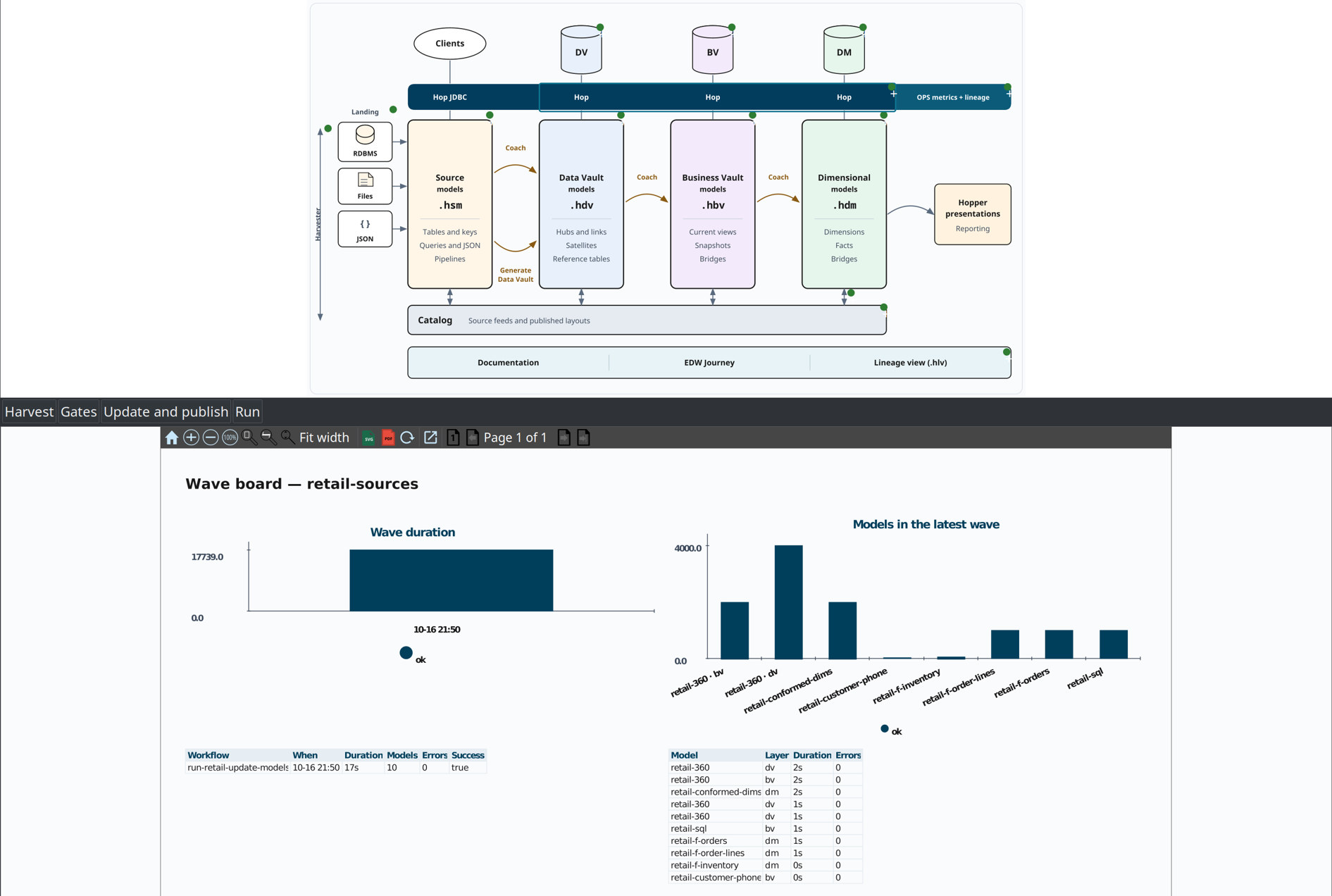
A click in the panel opens the matching place:
| Click | Where it goes |
|---|---|
A source subject |
The |
A vault, business vault, or dimensional table |
That model, with the table selected. Double-click opens the dialog. A dimensional fact can also open its update pipeline or its |
A catalog feed |
The record in the Data Catalog. Double-click goes to the origin model when the feed has one. |
Harvest, Validate, versions, lineage, the group, operational analytics |
The existing dialog or metadata editor. Generate Data Vault still opens the review dialog. Nothing is generated by the click itself. |
The offline talk page docs/presentations/edw-component-explorer.html is unchanged. It still opens pancards of explanation and screenshots.
Open the perspective
The sidebar button sits after Data catalog (plugin id 360-EdwJourneyPerspective). The top of the left pane is a resource definition group picker (Hop metadata line: dropdown, New, Edit, open in Metadata). If the project has one group, it is selected. Otherwise the last-used group is restored. Use the dropdown to switch groups; New creates a group without leaving the perspective.
From a resource definition group metadata editor, Open in EDW Journey.
Tree
Stages are always present, even when empty. Child order is the operate wave plus layer load order (all DV, then BV, then DM; list order within a layer).
| Stage | What you see |
|---|---|
1. Sources |
|
2. Controls |
Harvest, schema gate, source quality, catalog version tags |
3. Raw Data Vault |
|
4. Business Vault |
|
5. Dimensional |
|
6. Target quality |
Placeholder for post-load quality (last-run overlay is a later phase) |
7. Orchestration |
Project |
8. Outputs |
|
The grain is artifact / model file / run, not every column. Table-level lineage stays on the model Lineage tab and on .hlv.
Details and Open
Select a node for identity (path, catalog key, table count) and buttons that jump to:
-
Source / DV / BV / DM model canvases
-
Data Catalog record
-
Resource definition group metadata
-
Workflow, report,
.hem, or.hlvfile -
Harvest history, Validate sources, reverse lineage browser, catalog versions
Each selected level also has Documentation buttons (help icon) that open the matching plugin HTML guide in the browser — for example source modeler, harvest, schema gate, Data Vault, Business Vault, dimensional modeler, execution maps, or Hop Lineage View. The same HTML set is on the main toolbar EDW button and Help → EDW documentation.
The Journey toolbar AI Help opens the Hop AI Assistant on the current group snapshot (chat only: what is in the group, what to do next). See AI advisory.
Double-click is the primary Open action for models, feeds, workflows, and files.
Last run and problems
Selecting the group, Harvest, Source quality, Target quality, a model, or Orchestration shows last-run facts from the OPS database when it is configured (harvest schema_harvest_run, quality quality_run, load workflow_load_overview / load_run). Tree labels gain a short suffix (status, duration, change count).
A Problems table lists harvest drift, blocking quality findings, and failed loads. Missing OPS is never run, not an error.
Use the existing Harvest history… / Validate sources… buttons to open the full browsers. Model nodes also list recent load durations from load_run.
Grow the warehouse
Stage nodes offer create/add actions that write through existing GUI surfaces (not a parallel file-only config):
-
Sources — New source model; Import catalog feeds
-
Raw Data Vault — New
.hdv, add existing.hdvto the group, Generate Data Vault from source model when an.hsmis present (adds the resulting.hdvto the group when possible) -
Business Vault / Dimensional — New model file under
${PROJECT_HOME}/models/, or add an existing project file to the group -
Source quality — New quality rule set metadata
-
Group — Configure EDW setup
The resource definition group editor remains the full editor for model lists.
Empty project
With no resource definition group, the details pane offers Configure EDW setup…, New resource definition group…, and documentation for getting started, the resource definition group, Configure EDW, and this perspective. Create the group as soon as the first .hdv checks clean — see Getting started — Chapter 3.