Why it matters
Models describe a warehouse; a load builds it. In Data Hopper EDW the scope of a load is not a file and not a connection — it is the resource definition group: the list of warehouse models one warehouse consists of. Harvest, schema validation, catalog version tags, and loading all take the group as their scope.
Without a group, every runnable step needs its own wiring and the schema gate has nothing to compare. With one group you get one wave: all Data Vault models, then all Business Vault models, then all dimensional models, with a single load overview at the end.
This module builds on module 3: you need at least one .hdv that checks clean, and a database to load
into. Budget 30-40 minutes.
Concepts
The group is the scope of everything that runs
A resource definition group holds the .hdv files on its Data Vault models tab, the .hbv files on
its Business Vault models tab, and the .hdm files on its Dimensional models tab, plus a
Default catalog connection — the FILE catalog used when harvest, validate, tag, and the group update
do not override it.
The group is not a folder of catalog record definitions. Source feeds live in the catalog, and the group points at the model files that use them; putting catalog JSON paths in a model tab is an anti-pattern.
Create the group as soon as the first .hdv checks clean and leave the Business Vault and dimensional
tabs empty. Actions that take the group as their scope include Harvest source metadata (harvests
every catalog source referenced by the listed models), Validate resource definitions (the schema
gate), Update resource definition group (the load), Tag catalog version / List catalog
versions, and the lineage and architecture exporters.
Group update vs single-model update
Update resource definition group is the normal load action once you have a group — including a group
that lists only one .hdv. Every model runs through the same update path as the dedicated Data Vault
Update / Business Vault Update / Dimensional Update actions: model check options, DDL policy,
parallel pipeline copies, and optional catalog publish.
A standalone Data Vault Update action points at one .hdv file. It stays useful for debugging a
single model, and Begin/End Vault Update remain the advanced way to bracket a custom per-model graph.
For a standard multi-layer load, the group action is the shortest correct path.
One behavioural difference to remember: if a listed .hdv uses a read-only existing vault
configuration, the group action skips that Data Vault job (and logs it) so Business Vault and
dimensional updates still run — a standalone Data Vault Update pointed at the same file fails instead.
The load order is fixed
The group update always loads all Data Vault models first, then all Business Vault models, then all dimensional models. Within a layer, the order is the list order of that tab. You cannot interleave layers by shuffling the three lists; the action’s Selection tab only turns whole layers on or off (Include Data Vault models, Include Business Vault models, Include dimensional models).
What write-back to the catalog means
With Publish target tables to catalog enabled, each successful model write in the wave upserts:
-
target table layouts under
models/,business-vault/, ordimensional/in the project’s catalog; -
lineage siblings under
lineage/; -
model-registry entries that Business Vault and dimensional tables resolve through
ref('model', 'table').
That is why a group update changes the Data Catalog even though you never edited a source feed: the action publishes targets. Your source feeds stay as they are.
Watching a load
While the action runs it paints a badge in its bottom-right corner — a clock, a stall warning when no transform has made progress for about a minute, or a failure. Click the badge (or use View load metrics on the action’s context menu) to open Resource group load metrics: This run lists every model in the wave with the current table, elapsed time, and live metrics; History lists recent OPS load overviews.
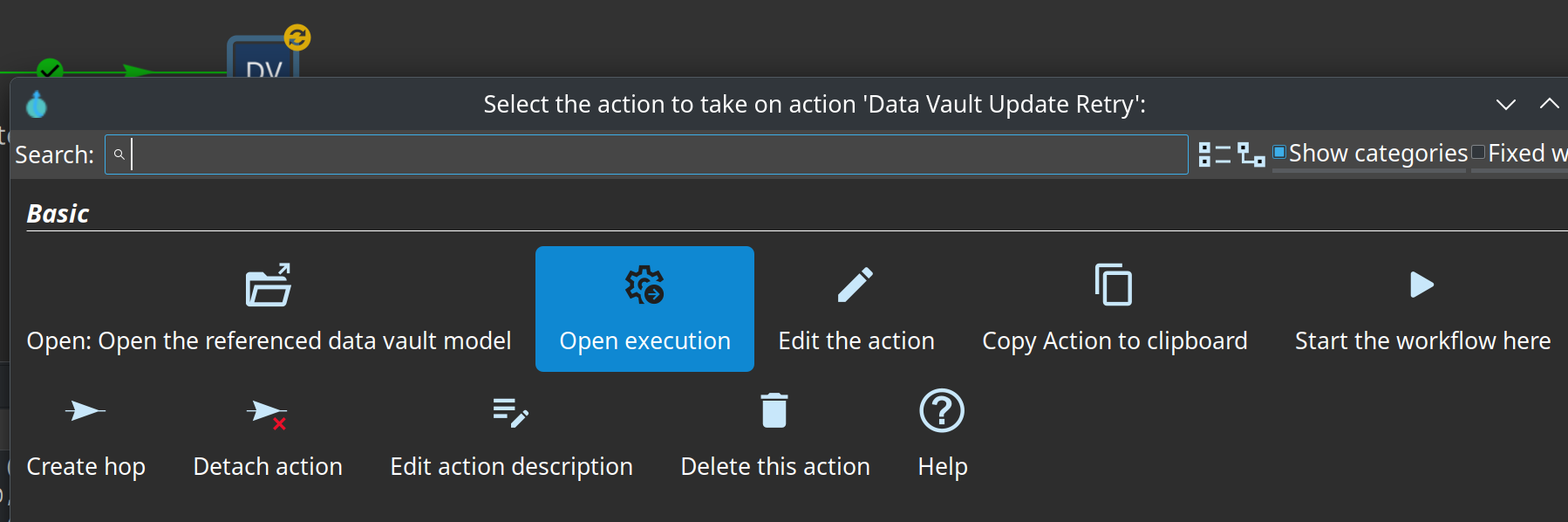
For per-pipeline detail: every model in the wave runs through the same update path as a dedicated update action, including the orchestrator pipeline that stages and picks up the generated update pipelines. To see which staged pipelines are being picked up and how many executor copies are busy, click a running update and choose Open execution.
Options that shape the wave: Update target database structure (execute CREATE/ALTER DDL before
loading), Fail if DDL is needed (the production guard — fail instead of altering), and Do not
update target database (dry run: checks and DDL handling only, no data pipelines). On the Metrics
tab, Manage vault update metrics (Begin/End) assigns DV_WORKFLOW_EXECUTION_ID before the models
run and publishes the workflow load overview at the end; Markdown and/or HTML reports land in the report
folder (retail default: work/reports).
Guided walkthrough
Start the environment
-
From the repository root, start the local PostgreSQL database once (container
hop-data-vault-postgres-local, port 54320):./scripts/run-postgres.sh up -
Optional but recommended — load the finished retail warehouse once, so you have a complete run to compare your own work with:
./scripts/run-hop.sh retail-example workflows/run-retail-initial.hwf -
Open Hop GUI on the project folder
retail-example/(File → Open project).
Read the retail group
-
Open Metadata → EDW → Resource definition group and read
retail-sources. The Data Vault models tab listsretail-360.hdv, the Business Vault models tab lists three.hbvfiles, and the Dimensional models tab lists four.hdmfiles. Default catalog connection islocal-catalog.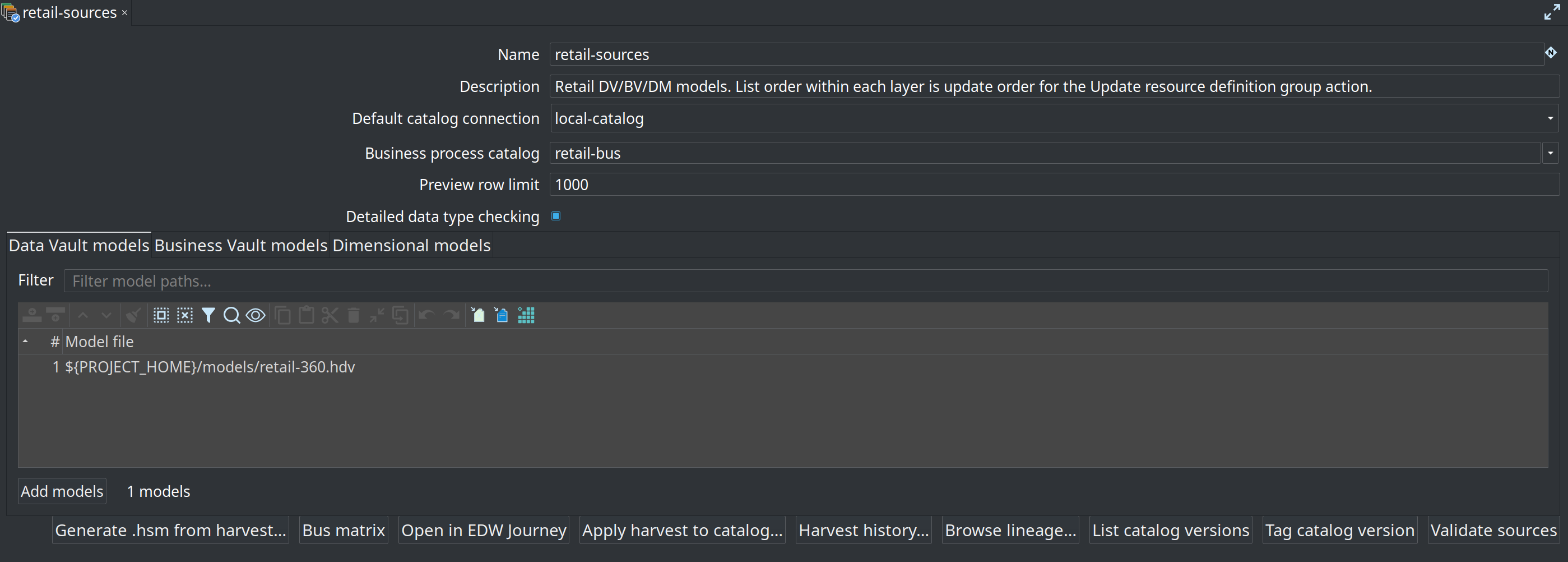
-
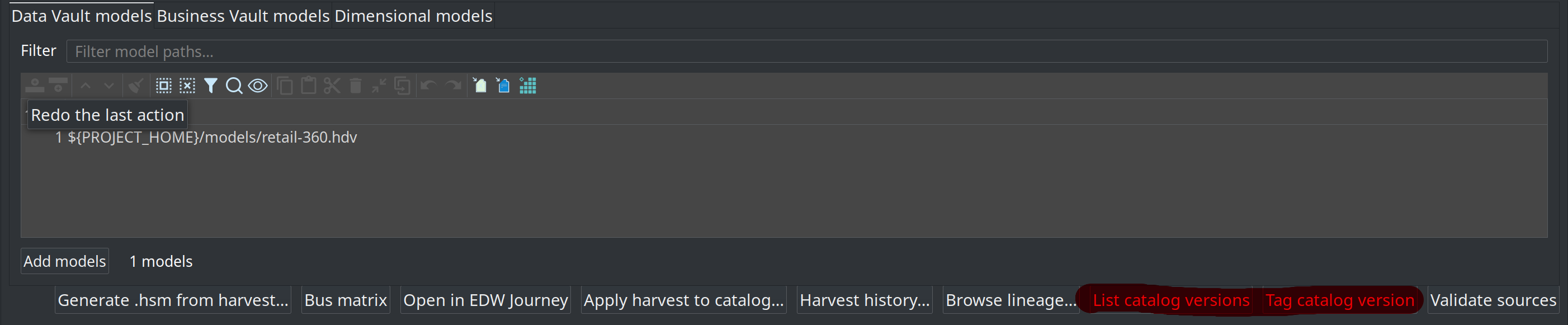
In the button bar at the bottom of the editor, find Tag catalog version and List catalog versions — source-contract snapshots that later schema gates compare against.
Create a group for your own models
-
Metadata → EDW → Resource definition group → New.
-
Set Name (for example, after your project) and keep Default catalog connection =
local-catalog. -
On the Data Vault models tab, Add models and select the
.hdvyou created in module 3. Keep the${PROJECT_HOME}/models/…form. -
Leave Business Vault models and Dimensional models empty — those files do not exist yet.
-
Save.
Configure the update action
-
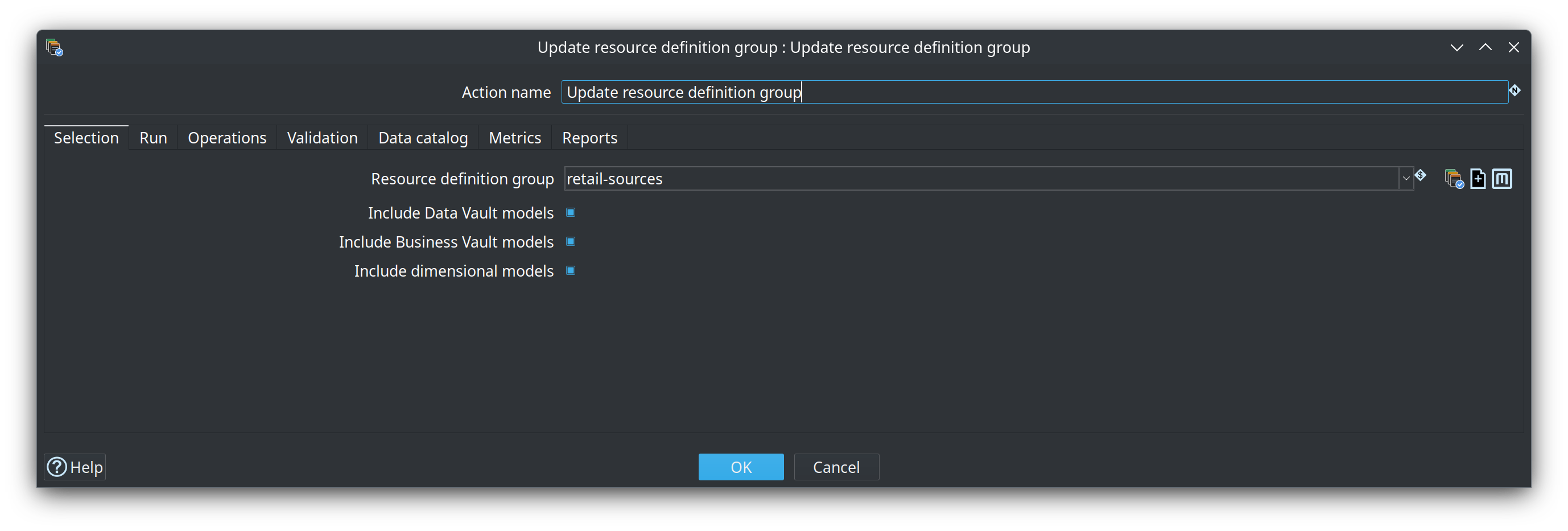
Create a new workflow and add the action Update resource definition group (category General).
-
Selection tab: choose your group; leave Include Data Vault models on, and turn the Business Vault and dimensional includes off until those files exist.
-
Operations tab: enable Update target database structure so CREATE TABLE runs on the empty Vault.
-
Data catalog tab: enable Publish target tables to catalog.
-
Validation tab: keep the defaults (model checks are logged; abort on errors if you want a hard stop before loading).
Run it and check the database
-
Run the workflow from the GUI (or with
hop-run/ a Docker runner). Watch the log and the action’s corner badge. -
When the run has finished, confirm the tables exist on the target connection. In the Database perspective, connect Vault and expand Vault → public:
Expected:
hub_*,lnk_*andsat_*tables. Select one and press Preview table to see rows. -
Compare: every hub, link and satellite table name from your
.hdvappears in the list.
Find what the load published
-
Refresh the Data Catalog perspective (F5) and open the project namespace.
-
The model’s target layouts now appear under
models/, next to the source feeds undersources/. Publish writes targets; your source feeds are untouched.
Run the retail production wave
-
Open
retail-example/workflows/run-retail-update.hwf, or run it from the repository root:./scripts/run-hop.sh retail-example workflows/run-retail-update.hwf -
The wave is the production pattern: Harvest source metadata → Validate resource definitions (schema gate) → Measure / Evaluate source quality → Update resource definition group (
retail-sources) — the nestedrun-retail-update-models.hwf— with the load recorded and operational analytics afterwards. -
Open the generated load overview in
retail-example/work/reports/(base nameretail-dv-update-report, Markdown and HTML). It summarizes the wave — model count, pipeline count, total duration, rows inserted — and lists each model with its duration and row counts: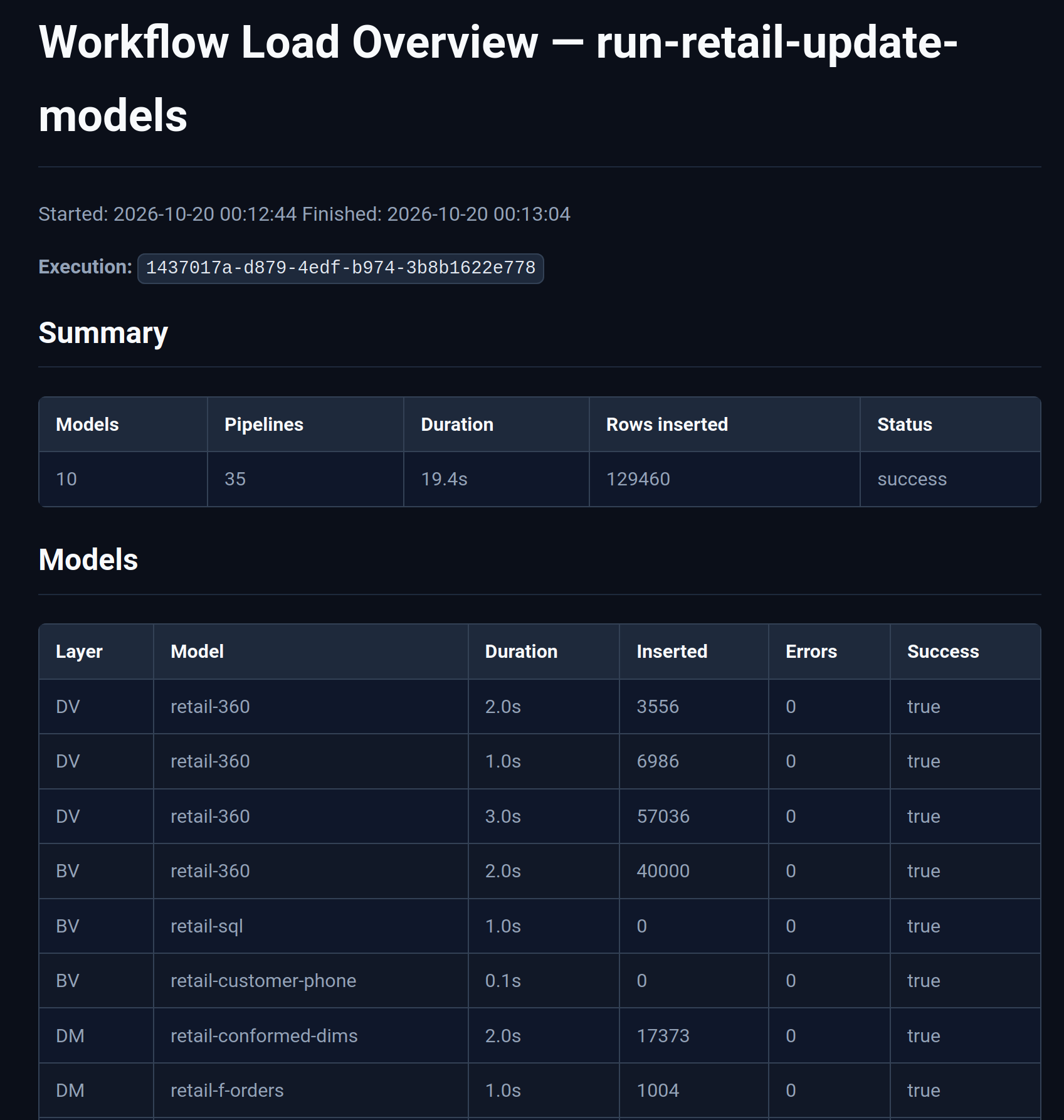
Try it yourself
Run your own group update a second time without changing anything — an idempotent wave is the goal:
-
Run the same workflow again and watch the log.
-
Check the database: the tables are still there, the run succeeds, and no table is dropped or recreated.
-
Check the catalog: the target layouts and lineage siblings under your project namespace are the same as after the first run.
Then answer the checkpoint question: which layers did your run include, and what would you have to add to your group before the same wave could load a Business Vault model?
Expected result: a second successful run with an unchanged warehouse and an unchanged catalog listing. If you see CREATE/ALTER statements for tables that already look correct, compare the model with the target database before continuing — something differs between them.
Questionnaire
Answer the seven questions. Every answer comes with its reasoning, and Copy my results gives you a text summary to keep.
1. What is a resource definition group?
b) A group lists the warehouse models — .hdv, .hbv and .hdm files — plus the default catalog connection. Source feeds live in the catalog; the group points at the model files that use them.
2. When a group exists, how does Update resource definition group relate to the single-model Data Vault Update action?
c) The group action is the normal load once a group exists — even a group that lists only one .hdv. Each listed model runs through the same update path as the dedicated single-model actions, which stay available for one file.
3. In which order does the group update load the models?
c) The layer order is fixed: all DV, then all BV, then all DM. Within a layer, list order is update order. Shuffling the three lists cannot interleave layers; the action only turns whole layers on or off.
4. What does Publish target tables to catalog write after each model update?
b) Each successful model write upserts target layouts under the models, business-vault and dimensional namespaces, lineage siblings under lineage, and registry entries for ref('model', 'table') resolution. The action publishes targets — your source feeds stay as they are.
5. Scenario: a second subject area must load in the same nightly wave as the existing warehouse. What is the right move?
c) One warehouse is one group. Create a second group only when teams need separate load waves; one group per layer is an anti-pattern, and the wave is exactly what the group lists.
6. Why is the group created as soon as the first .hdv checks clean, with the Business Vault and dimensional tabs still empty?
d) The group makes harvest, the schema gate and the load usable immediately. Business Vault and dimensional files are added to the same group as they are authored, and the update action then loads them in layer order.
7. What does the schema gate (Validate resource definitions) add to the wave?
b) The gate compares expected contracts with what is found (LIVE_SOURCE, WORKING_VS_VERSION, VERSION_VS_VERSION or HARVEST_RUN) before the DV/BV/DM updates run, and it never writes. On a first load, enable Target tables are created automatically so expected CREATE is not treated as a defect.
Where to go next
-
Training index — the other modules in this curriculum
-
Resource definition group — every tab, field and button of the group editor
-
Update resource definition group action — the full option reference for the load action
-
Data Vault Update action — the single-model update path
-
Resource definition validation — the schema gate, compare modes and version tags
-
Operations — Docker runners, the batch wave, metrics and reports
-
Getting started — building an EDW — chapters 3-5 follow this module end to end
-
Module 5 — Business Vault — next step: add a Business Vault to the same group