Why it matters
Data Hopper EDW ships an optional AI advisor: open a model, ask a question, and the answer is grounded in the model and the plugin’s own schema knowledge instead of general Data Vault advice. The plugin also publishes a public MCP server, so AI coding assistants can read the same project knowledge — coding rules, model schemas, documentation, plugin lookups — while someone edits files outside Hop GUI.
Both features are optional, and knowing their limits prevents wasted trust. The advisor is advisory: a fluent answer can still name a table that does not exist, and proposals are never applied to your model automatically. Without that boundary in mind, "the AI said so" becomes a data warehouse.
This module shows where the advisor appears, what it may read, how proposals are reviewed, and how
to point a coding assistant at the MCP server. Budget 20-30 minutes. No warehouse load is needed:
everything here works from model files. The prerequisites are Apache Hop 2.20 with the AI Assistant
plugin (plugins/tech/ai), a named AI Provider under Metadata, and AI enabled under
Configuration → Plugins → AI Assistant. hopper-edw itself still loads without the AI Assistant
plugin — AI Help is simply a no-op.
Concepts
Where the advisors appear
hopper-edw’s advisors are Hop 2.20 plugins implementing Hop’s IAiAdvisor interface; the Hop AI
Assistant workbench drives them. The Data Vault, Business Vault and dimensional modelers open that
workbench bound to the open model: click AI Help on the modeler toolbar (next to Check
model), or right-click the canvas and choose AI Help under Help. An advisory Scenario
(for example Data Vault Modeling, Source Analysis or Type Mapping) tunes the answer to
your goal.
| Surface | What the advisor does |
|---|---|
Data Vault, Business Vault and dimensional modelers ( |
Explains, analyzes, and can propose changes that you review and apply |
Source model ( |
Chat only — explains the open artifact, never edits it |
Pipelines ( |
Hop’s own AI Help (part of Hop 2.20, not this plugin) |
Proposals are reviewed, never applied automatically
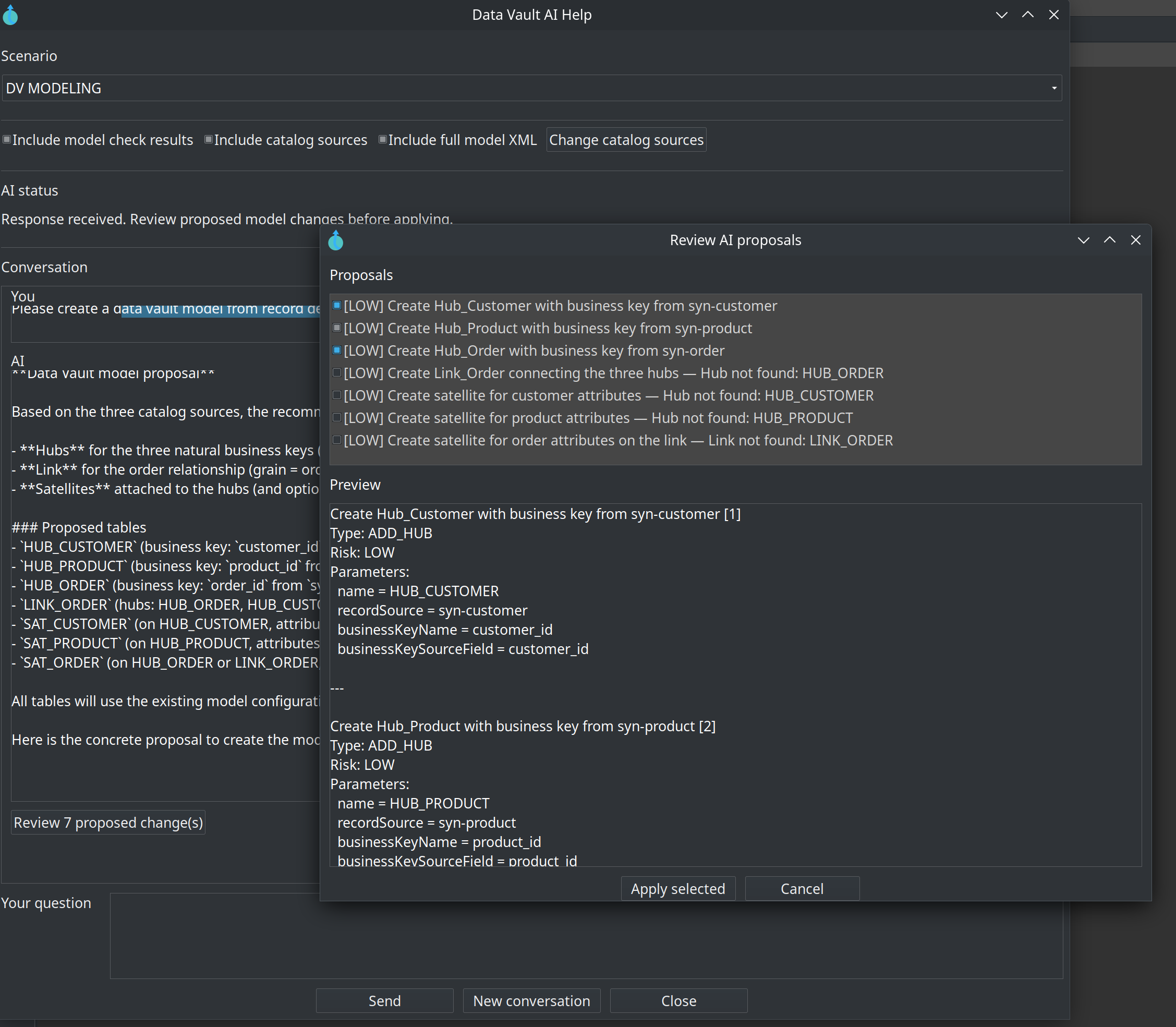
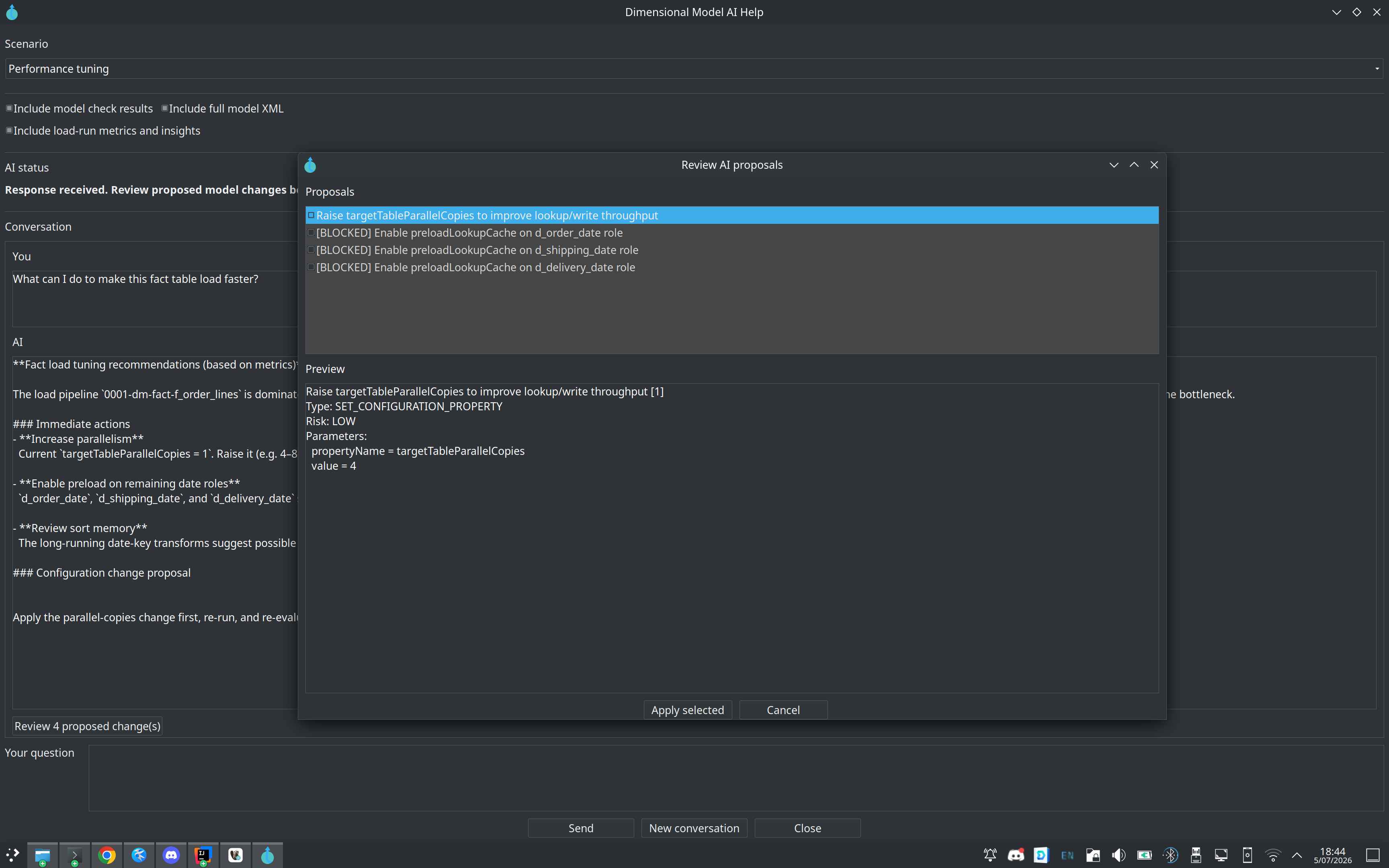
When a response contains actionable edits, a Review N proposed change(s) button appears in the conversation. It opens the Proposal Review Dialog, where you select the changes to keep, read a structural preview, see a LOW / MEDIUM / HIGH risk level, and skip the ones that would invalidate the model — blocked proposals are unchecked automatically, with the reason shown. Only Apply writes your selection into the open modeler, and it registers an undo point.
Proposal types cover every modeler: add a hub, link or satellite; set business keys or a record
source; rename or move a table; add a note; change a configuration property such as
targetTableParallelCopies; add an SCD2 or PIT table or a business table to a Business Vault; add a
dimension, fact, bridge or junk dimension to a dimensional model. The complete table is in the AI
advisory guide.
What the advisor may read
The model file is not the only input, and the prompt is not the only output. Before sending, you choose the Context Inclusions that travel with the prompt:
-
Include model check results — runs Check model on the open model and appends the result.
-
Include catalog sources — the catalog record definitions you explicitly select.
-
Include full model XML — the whole model file, sent on the first turn only.
-
Include load-run metrics and insights — recent
load_rundata and rule-based insights from the OPS catalog; auto-enabled by the Performance tuning scenario.
A sibling .hsm next to the open .hdv also contributes a compact classification JSON, so the
advisor can talk about sources without you attaching anything. Privacy follows the same logic: API
keys never travel in prompts, database connection descriptions are redacted to name, type, database
name and host (usernames, passwords, ports and URLs are excluded), and only the catalog schemas and
model components you explicitly approve are uploaded.
The MCP server: project knowledge for coding assistants
The repository’s mcp/README.md documents the public Model Context Protocol server, which gives AI
coding assistants a standard way to read the project’s knowledge. The endpoint is
https://mcp.data-hopper.com/mcp; supported clients include Claude Desktop, Cursor, Antigravity,
VS Code (Roo Code / Cline / Continue) and Goose. Five tools are exposed:
-
get_coding_rules(topic)— coding rules such as HopVfs usage, Lombok, i18n escaping and the Java 21 pin. -
get_model_schema(file_type)— specification, schema text, anti-patterns and sample paths for the model file types. -
search_knowledge_base(query, category)— short snippets across docs, rules, schemas and code. -
lookup_plugin_component(keyword, plugin_type)— transforms, actions, metadata and GUI classes. -
query_knowledge_graph(cypher)— one read-only Cypher statement against the knowledge graph.
Only the last tool needs Neo4j; if it is down, the other four still answer. A client is configured
with a small block — the same one that ships in .mcp.json and .cursor/mcp.json at the repository
root:
{
  "mcpServers": {
    "datahopper": {
      "url": "https://mcp.data-hopper.com/mcp"
    }
  }
}
The AI file-schema pack for external agents
Not every edit happens in Hop GUI. The repository ships a portable context pack under
docs/ai-file-schemas/: XSD and JSON Schema plus purpose markdown for the .hdv, .hbv, .hdm
and .hsm model files, project metadata JSON, and catalog record definitions. Start with
conventions.md and cross-references.md, attach the file-type docs that match the edit, and
prefer editing an existing sample under retail-example/ or integration-tests/ over inventing
structure. After structural edits, open the file in Hop GUI and run Check model.
Guided walkthrough
Ask the Data Vault advisor about a link
-
Open
models/retail-360.hdvfrom theretail-exampleproject in the modeler. -
Click AI Help on the modeler toolbar (next to Check model).
-
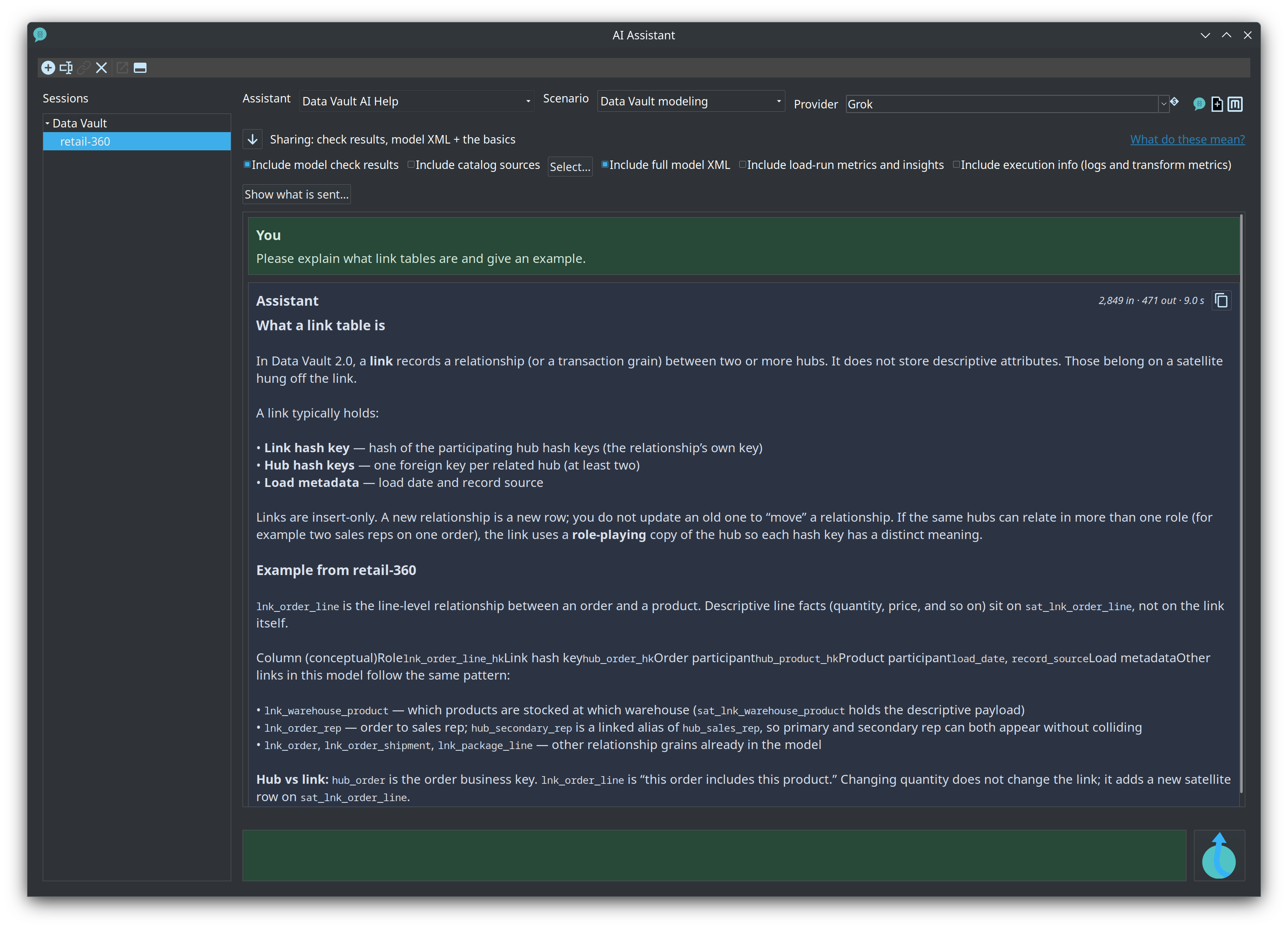
Keep the General scenario, or select Data Vault Modeling, and ask about link satellites — the advisor explains LSAT semantics and cites tables from your open model.
-
Read the answer and note which of your model’s tables it names; you will verify one of them in Try it yourself.
-
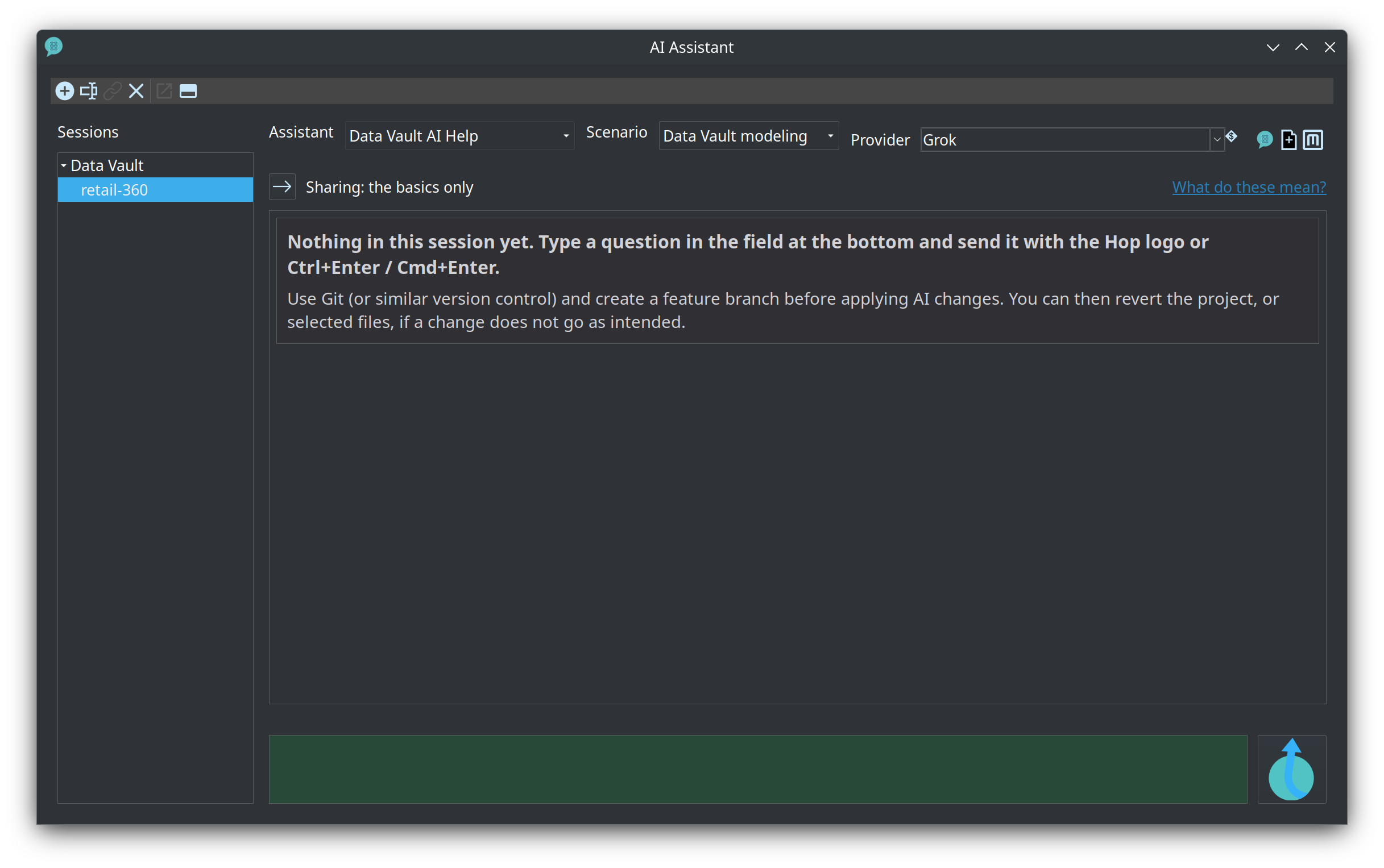
Use the workbench controls for the next question: the scenario, the Context Inclusions and the prompt field are all part of the conversation, and Send runs the prompt in the background while the transcript updates when the answer is ready.
Suggest a model from catalog sources
test/ai-modeling-test.hdv in retail-example is empty and already lists the E2E catalog sources on the Coach panel.
-
Open that model and click AI Help.
-
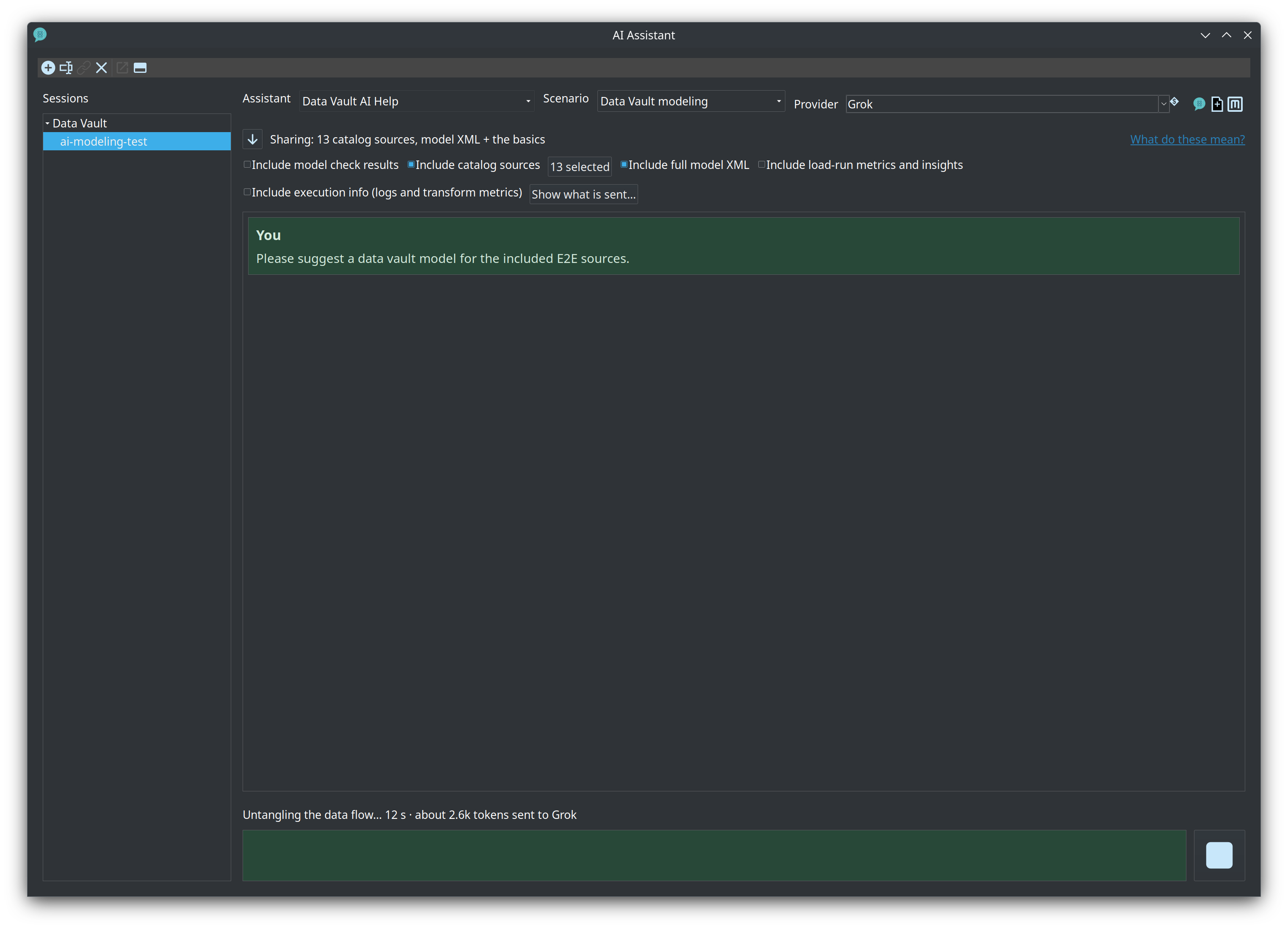
Choose Data Vault modeling. Check Include catalog sources, click Select…, and include the E2E feeds. Check Include full model XML so the advisor can see that the canvas has no tables yet.
-
Ask it to suggest a Data Vault model for the included sources.
-
Read the hubs, links, and satellites in the answer.
load_dateandrecord_sourceare load metadata, not business attributes.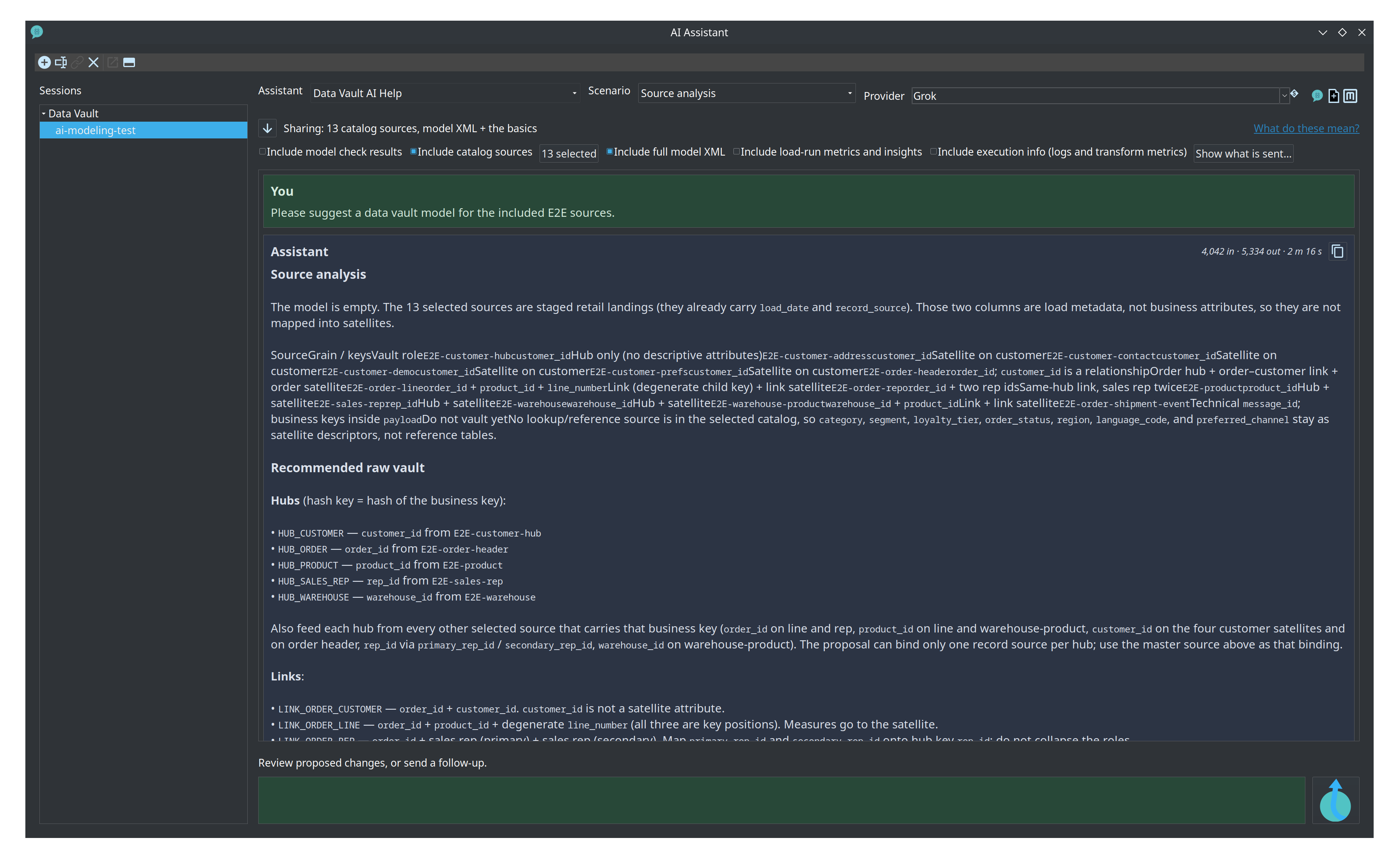
-
Press Review N proposed change(s).

-
Apply only the checked hubs. Links and satellites that name a missing hub stay blocked.
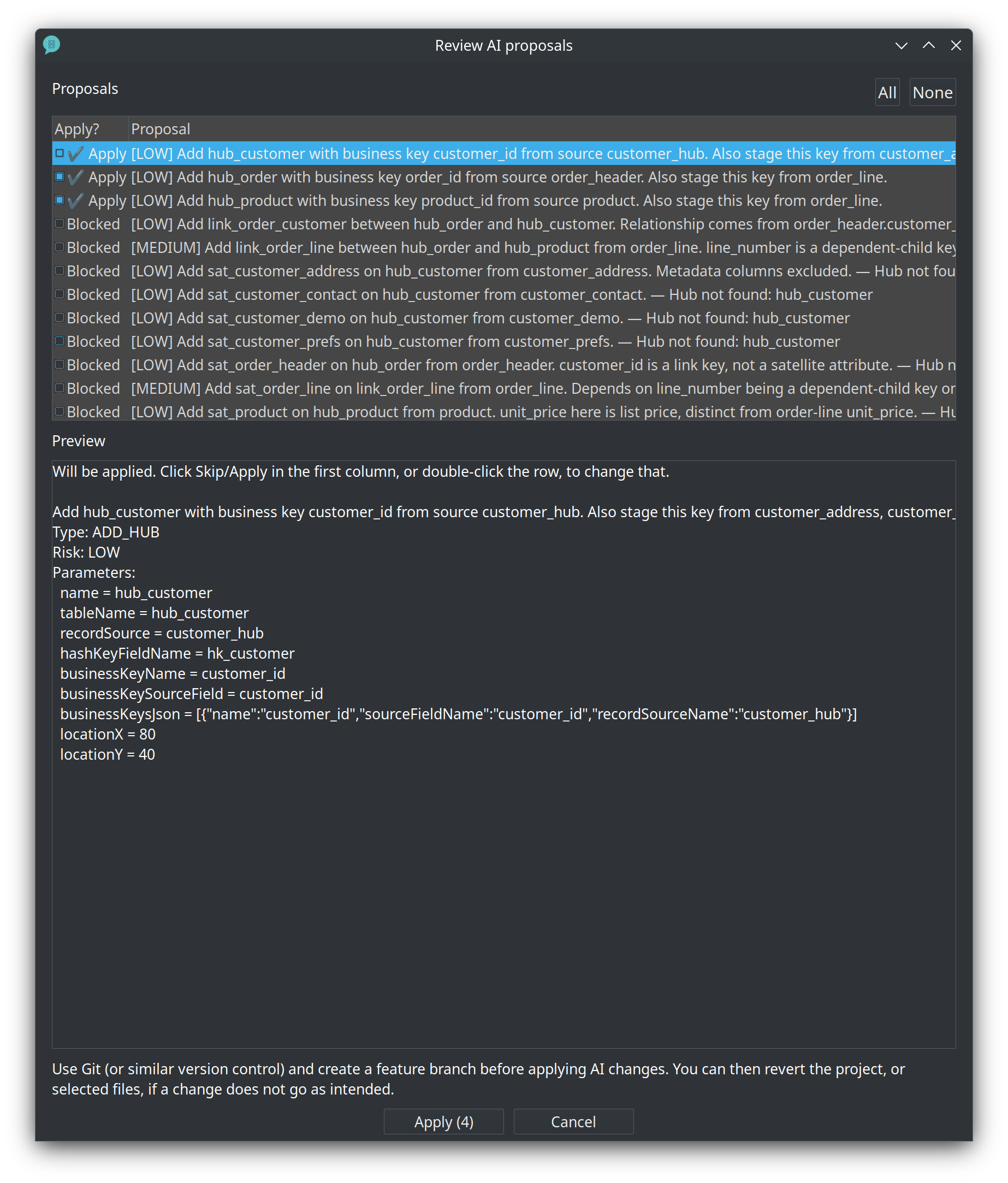
-
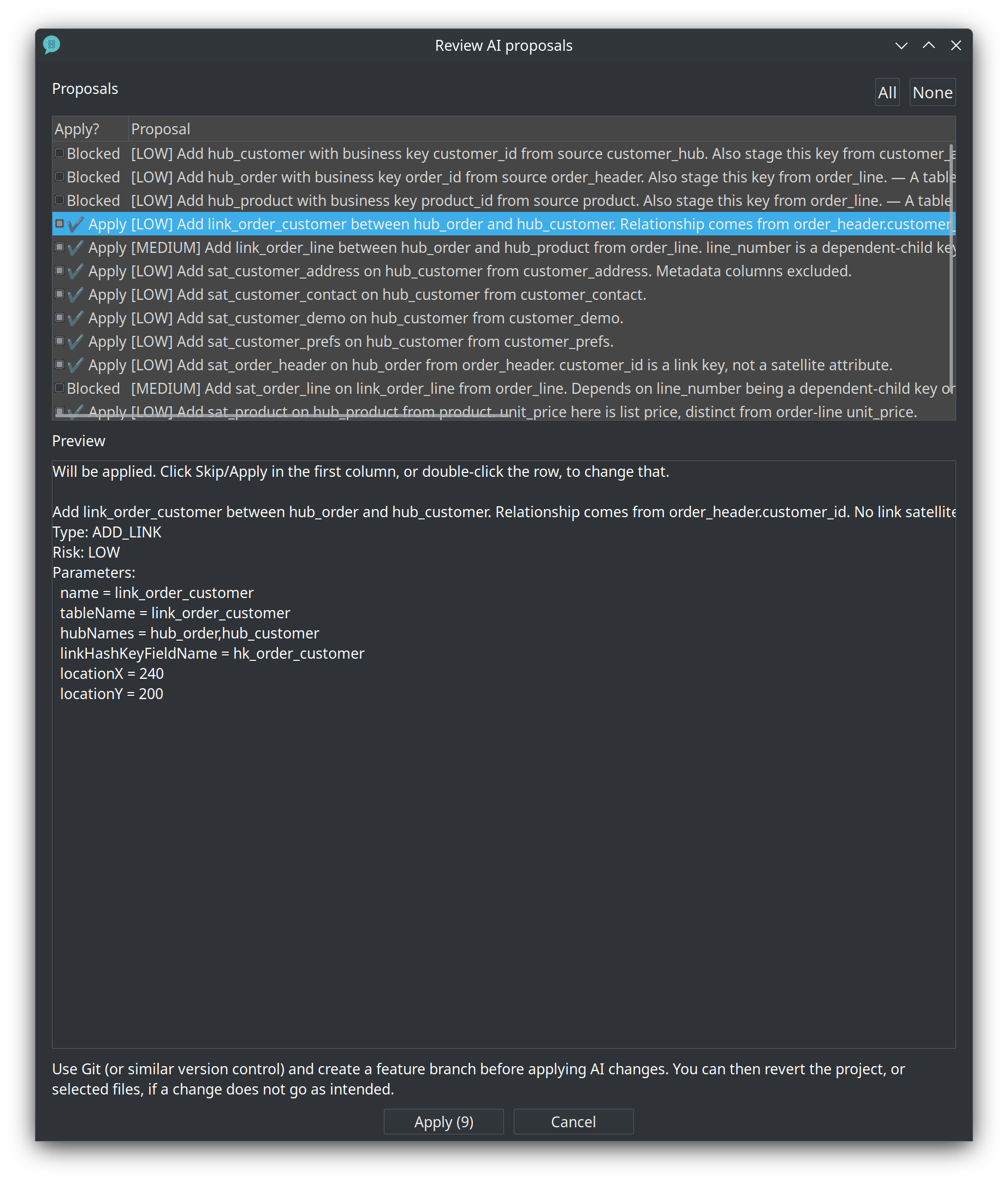
Open Review again. The hubs are blocked because they now exist. Apply the links and satellites that are checked. A satellite on a link stays blocked until that link is on the model.
-
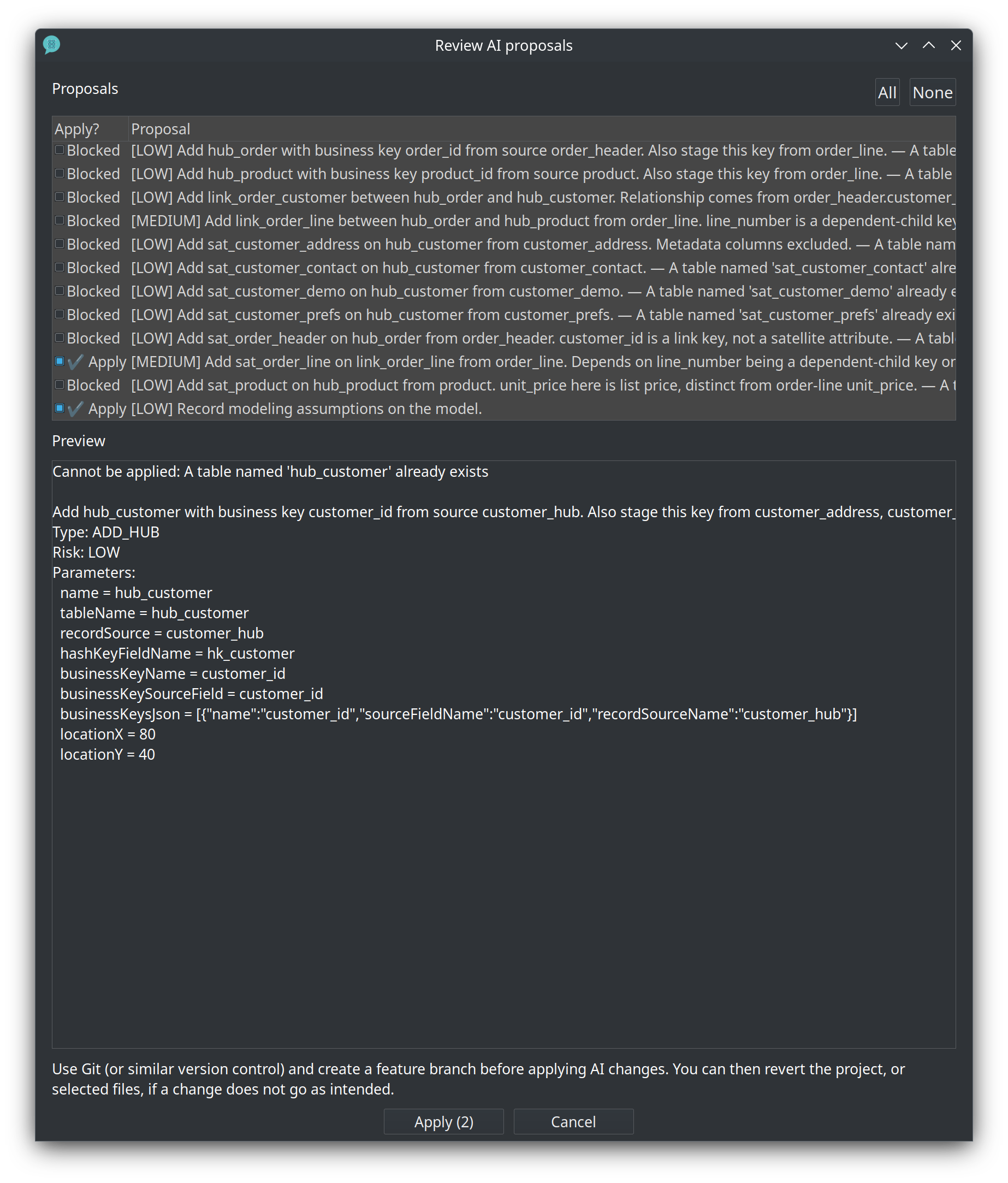
One more pass applies what is still new, including the order-line satellite and a note on the canvas.
-
The canvas shows the raw vault. Undo is on the modeler toolbar if you want the empty model back.
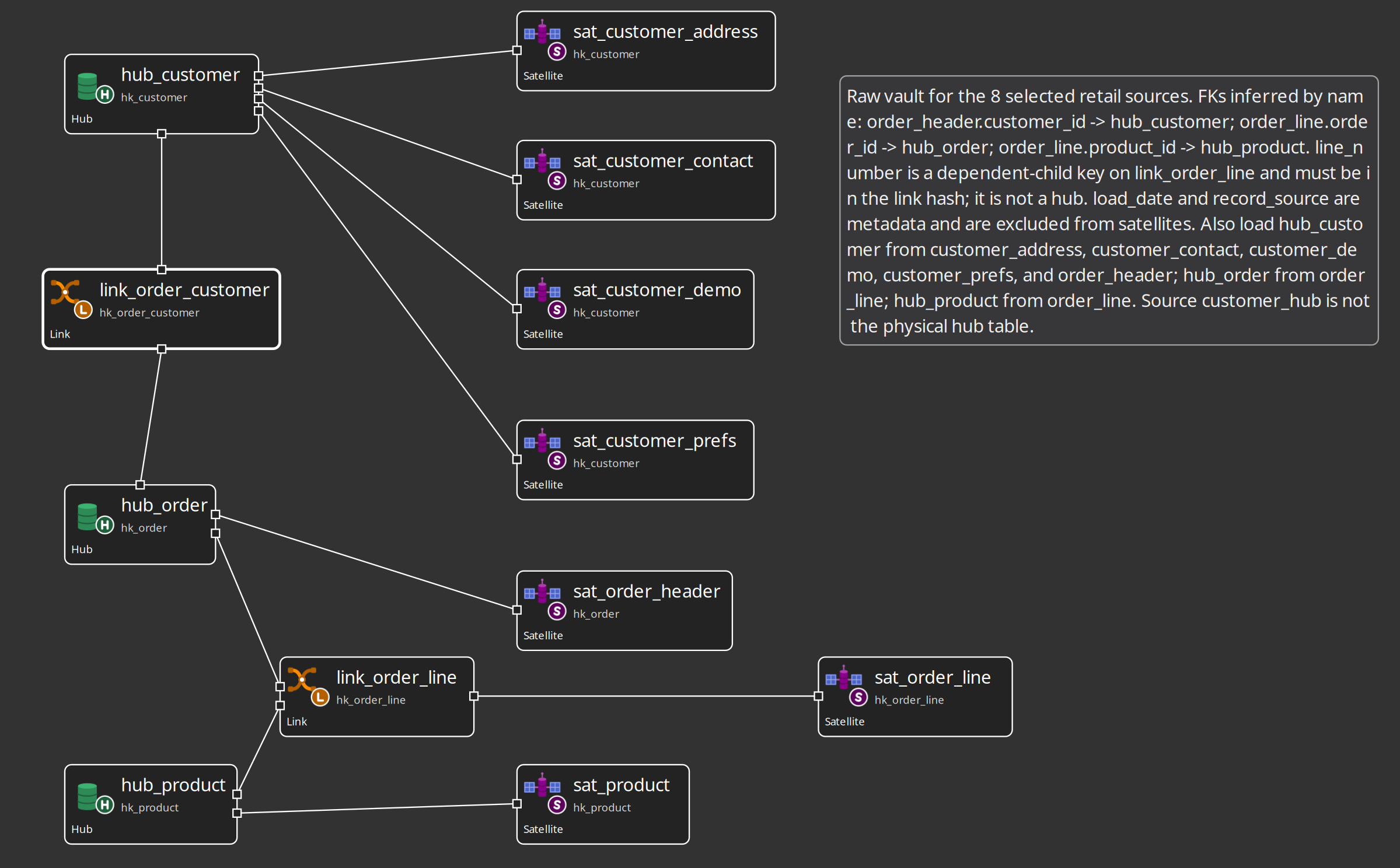
The same sequence is written up in AI advisory.
Review a proposal before you apply it
-
Ask for a change — for example, in the Data Vault Modeling scenario, review one satellite and suggest what it is missing.
-
When the response contains proposed changes, press Review N proposed change(s) in the transcript.
-
Read the risk level, the warnings and the preview of each change; blocked entries stay unchecked. Select only what you want, then press Apply — or close the dialog and change nothing. If you apply, undo is available on the modeler toolbar.
-
Optional: on a modeler with load history, select the Performance tuning scenario, enable Include load-run metrics and insights, and ask how to speed up a load. A proposal may raise the parallel copies of a target table; read it in the review dialog before you apply it.
Optional: connect a coding assistant to the MCP server
-
Optional: copy the client block from the Concepts section (or
mcp/README.md) into your MCP-capable client’s configuration — the same block ships in.mcp.jsonand.cursor/mcp.json. -
Call
get_coding_ruleswith a topic, orsearch_knowledge_basewith a question, and read the snippets that come back. This runs outside Hop GUI; nothing in the GUI changes.
Try it yourself
Ask the advisor one question about your own model and check whether the answer cites model elements you can verify:
-
Open one of your own
.hdvfiles (or useretail-360.hdvagain) in the modeler. -
Before sending, write down the Context Inclusions you enabled — that list is what the advisor can see.
-
Ask a specific question about one table, for example which fields a satellite carries or which hubs a link connects.
-
For every table or field the answer names, open the modeler and confirm that it exists.
Check your work: you can name which parts of the model the advisor read (the open model plus your inclusions), and every claim you checked holds. If the answer names something that does not exist, the model is right and the answer is wrong — the advisor is advisory, and Check model is the validation that counts.
Questionnaire
Answer the eight questions. Every answer comes with its reasoning, and Copy my results gives you a text summary to keep.
1. Which AI Help surface can apply changes to the open artifact after you review them?
d) The Data Vault, Business Vault and dimensional modelers surface proposals (dv_proposals) that you can review and apply, and Hop's pipeline and workflow AI Help can do the same on graphs. The EDW Journey, source-model, lineage-view and execution-map advisors are chat-only: they explain the open artifact and never edit it.
2. A response proposes changes to your model. What happens immediately?
b) Proposals stay in the conversation until you open the review dialog. There you see a preview, a LOW/MEDIUM/HIGH risk level and the validation status; changes that would invalidate the model are blocked and unchecked automatically. Applying registers an undo point.
3. What may the advisor read before it answers?
c) Context is explicit: Include model check results, Include catalog sources, Include full model XML (first turn only) and Include load-run metrics and insights; a sibling .hsm contributes its classification JSON. Only schemas and components you approve are uploaded, connection descriptions are redacted to name, type, database and host, and API keys never travel in prompts.
4. What is the MCP server for in this project?
c) Data Hopper publishes a public Model Context Protocol server at https://mcp.data-hopper.com/mcp. Clients such as Claude Desktop, Cursor and VS Code connect to it and call tools like get_coding_rules and search_knowledge_base. It is project tooling for assistants — it does not run inside Hop GUI and does not touch your warehouse.
5. Which MCP tool returns the specification, schema text and anti-patterns for a file type such as .hdv?
b) get_model_schema(file_type) returns the specification, schema text, anti-patterns and sample paths. get_coding_rules covers coding rules such as HopVfs and i18n; search_knowledge_base returns short snippets across docs, rules, schemas and classes; query_knowledge_graph runs one read-only Cypher statement — it is the only tool that needs Neo4j, and the other four still answer when Neo4j is down.
6. Where does the AI file-schema pack live?
c) The pack holds XSD and JSON Schema plus purpose markdown for .hdv, .hbv, .hdm and .hsm, project metadata, and catalog record definitions. Attach conventions.md plus the matching file-type docs when an external assistant edits project files, and run Check model in Hop GUI after structural edits.
7. Scenario: an advisor answer contradicts what Check model reports. Which one wins?
c) The advisor is advisory and can be fluent and wrong at the same time. Check model validates the actual model, and the file-schema guidance says the same: after structural edits, open the file in Hop GUI and run Check model. Review any proposal, apply it, then check the model again.
8. Do AI Help and the MCP server need a loaded warehouse (tables in the Vault database)?
c) The advisor can explain a model as soon as it opens; load-run metrics and last-run OPS appear only when they exist, and they auto-enable for the Performance tuning scenario. The MCP server does not connect to your warehouse at all.
Where to go next
-
AI help and advisory — prerequisites, providers, scenarios, context inclusions, proposal types and the privacy rules
-
The AI file-schema pack (XSD and JSON Schema plus purpose docs for external agents) lives in the repository under
docs/ai-file-schemas/— it is not part of this offline documentation bundle. -
https://mcp.data-hopper.com/mcp — the public MCP server; tool list and client configuration in
mcp/README.md -
Training index — the other modules in this curriculum